
Giving an Old PC a New Life with Winux
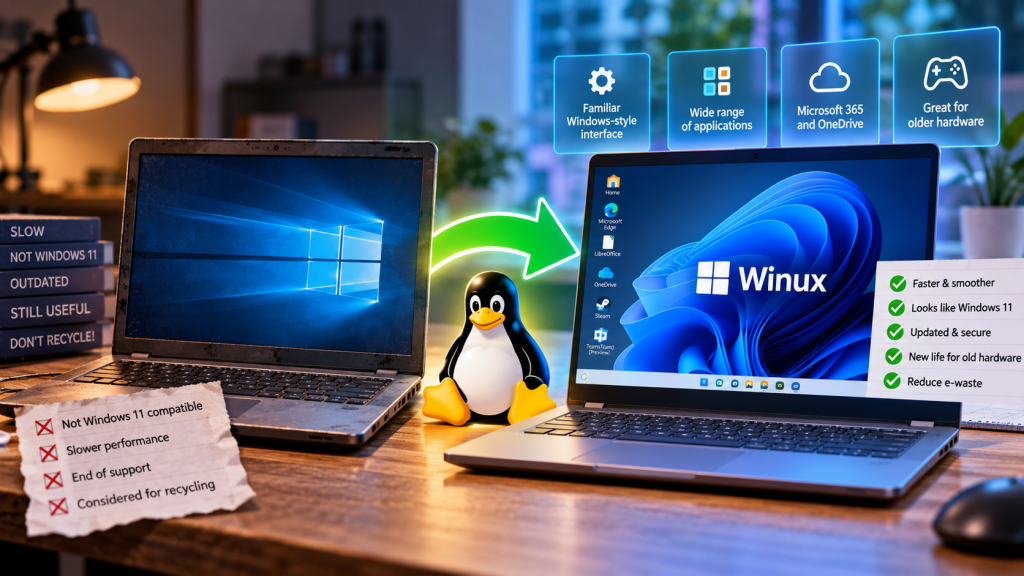
I’ve been spending some time experimenting with different Linux distributions recently.
Partly because I’m a geek and enjoy this sort of thing, obviously.
But there’s also a more practical reason.
There are millions of perfectly usable PCs that don’t meet the hardware requirements for Windows 11. That doesn’t necessarily mean there’s anything wrong with them — and it certainly doesn’t mean they need to head straight for landfill.
Linux can give some of these machines a second life.
One distribution I’ve been experimenting with is Winux, an Ubuntu-based Linux distribution designed to provide a very familiar experience for people coming from Windows.
And I have to say, I was pleasantly surprised.
🐧 Linux Without the Culture Shock
One of the things that can put people off moving from Windows to Linux is simply that everything looks different.
The applications are different. The menus are different. Settings are somewhere else. Even relatively simple tasks can initially feel unfamiliar.
Winux takes a different approach.
Its desktop has deliberately been designed to look and behave much more like Windows 11.
For somebody moving from Windows, that immediately makes the transition feel less intimidating.
You get a familiar desktop, Start-menu-style interface, taskbar and overall layout that shouldn’t require quite as much explanation to somebody who’s spent years using Windows.
Underneath all of that, however, it’s still Linux.
And because it’s based on Ubuntu, you’re starting with an established Linux ecosystem rather than something completely obscure.
💻 My Test Machine
I didn’t test this on a shiny new computer.
That would rather defeat the point.
My test laptop was running:
- 3rd Generation Intel Core i5
- 8 GB RAM
- SSD
That’s exactly the sort of machine that might otherwise be considered ready for retirement.
The installation was straightforward, with relatively little intervention required.
More importantly, the hardware just worked.
The display was detected correctly, Wi-Fi worked and I didn’t have to spend hours hunting around for obscure drivers.
Once the installation had finished, I went to run the updates.
It was already up to date.
That’s always a nice start. 👍
🚀 How Does It Perform?
Surprisingly well.
An SSD obviously makes an enormous difference to older hardware, but the operating system felt perfectly usable on this machine.
For general web browsing, email, office applications and everyday computing, I certainly wouldn’t have guessed I was using hardware of that age.
And that’s really the point.
A computer doesn’t suddenly become useless because it isn’t officially supported by the latest version of Windows.
If the hardware still works and provides acceptable performance, replacing the operating system can potentially extend its useful life considerably.
🪟 A Very Familiar Desktop
This is where Winux becomes particularly interesting for somebody moving away from Windows.
The desktop is deliberately Windows-like.
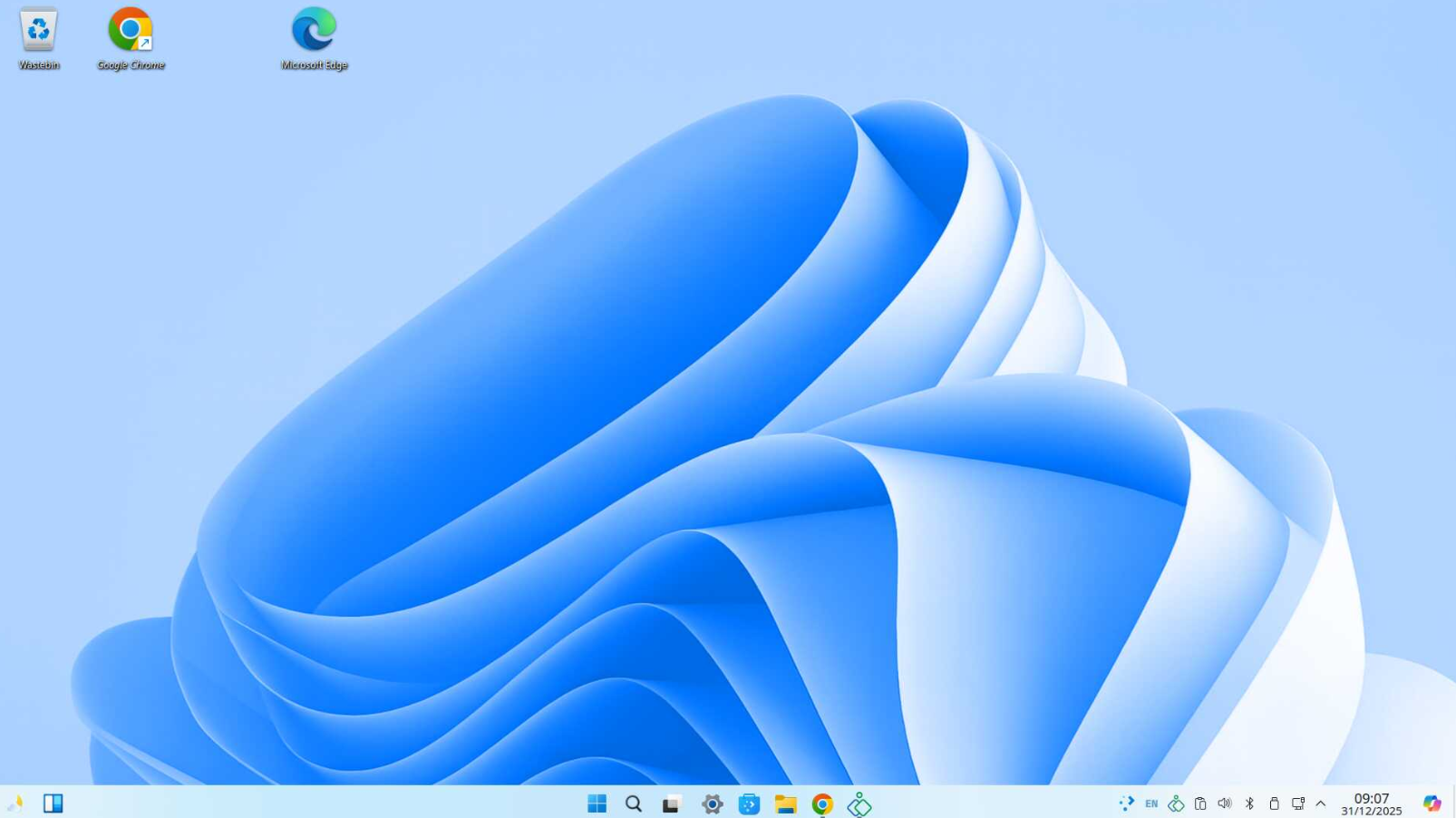
It isn’t simply a generic Linux desktop with a Windows wallpaper thrown on top. A lot of effort has clearly gone into making the overall experience familiar to Windows users.
📋 The Start Menu
The Start menu continues the Windows-style experience.
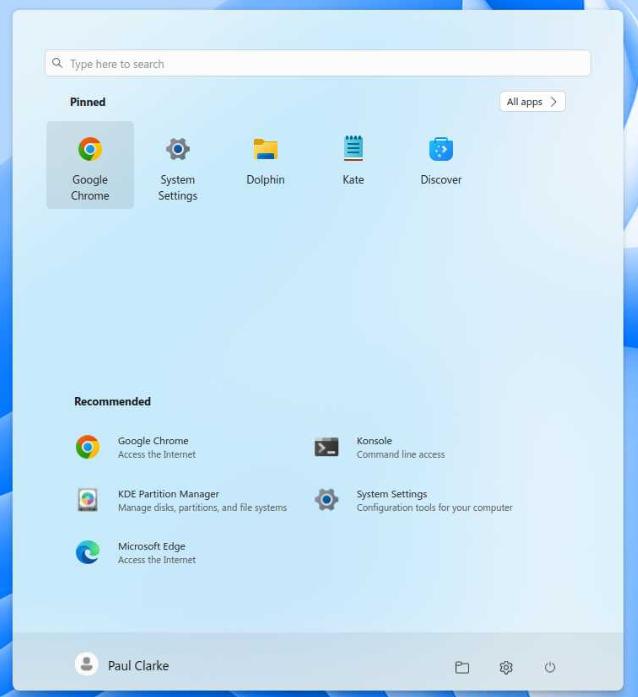
For an experienced Linux user, this probably isn’t particularly important.
For somebody who’s used Windows for the last 20 years, however, familiarity can make a huge difference.
The less somebody has to relearn on day one, the more likely they are to actually stick with the new operating system.
📦 What About Applications?
There’s a good selection of software available, and the operating system provides access to the enormous catalogue of applications available for Linux.
An open-source office suite was already installed on my system, giving you the usual word processing, spreadsheet and presentation applications without needing to buy another licence.
There are also convenient links to Microsoft’s web-based Microsoft 365 applications.
For many home users, that’s probably all the office software they’ll actually need.
☁️ What About Microsoft 365 and OneDrive?
This is an important consideration if you’re coming from Windows.
Winux provides convenient access to Microsoft 365’s web applications and also includes options for working with OneDrive.
Microsoft Edge is available too, so if you’re already synchronising your bookmarks, passwords and browsing information through Edge, moving to Linux doesn’t necessarily mean abandoning your existing browser setup.
It makes the transition from a Windows PC considerably less dramatic than many people might expect.
🎮 And There’s More…
There are plenty of applications available beyond basic office software.
Steam is available for gaming, and there are tools for running or integrating applications from other platforms depending on your requirements.
There are also options aimed at business and corporate environments.
Exactly how well specialist Windows applications work is something I’d always recommend testing before replacing Windows completely.
Don’t assume that because an application runs on Windows, it will automatically work perfectly under Linux.
For specialist business software, drivers, VPN clients, accounting applications and peripherals, test first.
🎥 A Look at the Installed Applications
Here’s a quick look around some of the applications available on my installation:
🔐 What About Security?
Moving to Linux doesn’t magically make a computer secure.
You still need to:
- Install security updates
- Keep applications updated
- Use strong, unique passwords
- Enable MFA where available
- Be careful with downloads
- Maintain backups
- Keep your browser updated
- Avoid installing software from untrusted sources
Linux may have a different security model from Windows, but the person sitting in front of the keyboard remains a very important part of the security equation.
⚠️ Before You Replace Windows
Don’t immediately wipe your Windows installation just because you fancy trying Linux.
Before making any major changes:
- Back up your files — and make sure you can actually restore them.
- Check your BitLocker recovery key if Windows device encryption or BitLocker is enabled.
- Check your important applications and make sure suitable Linux versions or alternatives are available.
- Check specialist hardware such as printers, scanners, docks and other peripherals.
- Check business software before assuming it will work.
- Consider creating Windows recovery media before removing Windows.
- Try Linux from a bootable USB first if the distribution supports a Live environment.
A Live USB can be particularly useful because it allows you to boot Linux and test things such as Wi-Fi, graphics, sound and general hardware compatibility without immediately replacing Windows.
Experiment first. Wipe the drive later.
Future you may be extremely grateful for that decision.
♻️ The Bigger Picture
This is actually the part I find most interesting.
There are plenty of older PCs that are still perfectly capable of browsing the internet, accessing email, editing documents, watching videos and performing everyday computing tasks.
Their hardware hasn’t suddenly stopped working.
They’ve simply reached the point where the latest version of Windows may no longer be appropriate for them.
Installing Linux can potentially turn a machine destined for recycling into a perfectly usable computer again.
For a spare computer, children’s PC, workshop machine, web-browsing laptop or a computer for somebody with relatively simple requirements, that’s well worth considering.
👍 Would I Recommend Winux?
Yes — with a few caveats.
I wouldn’t suggest wiping Windows from your main computer tomorrow without checking that your applications and peripherals will work first.
But if you have an older laptop or desktop gathering dust because it isn’t suitable for Windows 11, Winux is certainly worth experimenting with.
My old 3rd-generation Core i5 laptop with 8 GB of RAM and an SSD handled it remarkably well.
And because the interface is so familiar, it’s one of the more interesting Linux options I’ve tried for somebody who wants to move away from Windows without immediately feeling completely lost.
Best of all, you can experiment with Linux without immediately committing to it.
So before sending that old computer for recycling… perhaps give the penguin a chance. 🐧