
How to secure your Microsoft 365 Environment
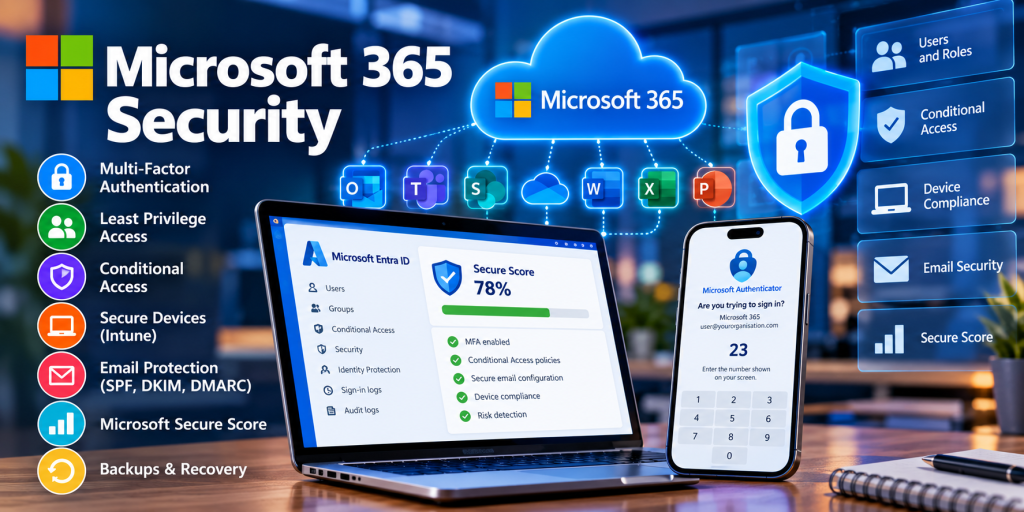
How Secure Is Your Microsoft 365 Environment?
Microsoft 365 provides businesses with email, collaboration, file storage and identity services, but simply using Microsoft 365 does not automatically make your organisation secure.
Your Microsoft 365 tenant contains some of your organisation’s most valuable information: email, documents, Teams conversations, SharePoint data, OneDrive files and user identities. A compromised account can therefore give an attacker access to far more than just someone’s email.
The good news is that Microsoft provides a comprehensive set of security controls. The important part is making sure they are configured correctly.
1. Use Multi-Factor Authentication
Multi-Factor Authentication (MFA) should be considered essential for Microsoft 365.
A username and password alone are no longer sufficient protection. Passwords can be stolen through phishing attacks, malware, password reuse and data breaches.
MFA adds another method of authentication, making a stolen password significantly less useful to an attacker.
Where practical, consider passkeys, FIDO2 security keys or Windows Hello for Business. These provide considerably stronger protection against phishing than passwords and simple push notifications.
If Microsoft Authenticator push notifications are used, number matching provides additional protection by requiring the user to enter the number displayed by the application requesting authentication rather than simply pressing an Approve button.
Users should also be trained never to approve an authentication request they did not initiate.
2. Protect Administrator Accounts
Global Administrator is one of the most powerful roles in Microsoft 365 and Microsoft Entra ID. It should therefore be assigned to as few accounts as reasonably possible.
Administrators should normally have a separate account for administrative work rather than using a Global Administrator account for everyday email, web browsing and general office work.
Administrative accounts should have particularly strong authentication requirements and should not normally be used on unmanaged or untrusted devices.
Use the least-privileged Microsoft Entra role that provides the permissions required to perform the job.
3. Follow the Principle of Least Privilege
Least privilege means giving users and administrators only the permissions they genuinely need.
If an account becomes compromised, the permissions assigned to that account determine how much damage an attacker may be able to cause.
For example, someone who only needs to manage users should not automatically receive Global Administrator permissions.
Microsoft Entra ID provides numerous administrative roles designed for specific purposes, including User Administrator, Exchange Administrator, SharePoint Administrator and Authentication Administrator.
Use these more specific roles wherever possible.
4. Use Conditional Access
For organisations with appropriate Microsoft Entra licensing, Conditional Access is one of the most powerful security features available.
Conditional Access allows Microsoft 365 to make access decisions based on factors such as:
- The user signing in
- The application being accessed
- The user’s location
- The device being used
- Whether the device is compliant or managed
- The authentication method used
- The assessed risk of the sign-in
Policies can then require additional security controls or block access entirely.
For example, an organisation might require MFA when accessing Microsoft 365 from outside its trusted office locations, or require a compliant managed device before sensitive company information can be accessed.
5. Be Careful With Location-Based Restrictions
Conditional Access can restrict access based on countries, regions and trusted IP addresses, but geographical restrictions should be used as one layer of security rather than the only layer.
If your organisation operates exclusively in the UK, sign-ins originating from unexpected countries may justify additional authentication requirements or potentially be blocked.
However, IP-based geolocation is not perfect and attackers can use VPNs and cloud services to make connections appear to originate from another location.
Location controls therefore work best alongside MFA, device compliance and risk-based policies.
6. Block Legacy Authentication
Older authentication protocols can bypass some of the protections available with modern authentication.
Unless there is a documented business requirement for them, legacy authentication methods should be disabled.
This can significantly reduce the attack surface of a Microsoft 365 environment.
7. Secure Your Devices
Protecting Microsoft 365 isn’t only about protecting the cloud service. The computers and mobile devices accessing your data also matter.
Where appropriate, organisations can use Microsoft Intune to manage devices and enforce security requirements such as:
- BitLocker disk encryption
- Windows security configuration
- Operating system update requirements
- Firewall configuration
- Endpoint protection
- Device compliance policies
Conditional Access can then be used to restrict access when a device does not meet the organisation’s security requirements.
8. Protect Email Against Phishing
Email remains one of the most common routes into an organisation.
Your Microsoft 365 security configuration should therefore include protection against phishing, malicious attachments, suspicious links and impersonation attacks.
Your email domain should also be correctly configured with:
- SPF
- DKIM
- DMARC
These technologies work together to make it more difficult for attackers to impersonate your organisation’s email domains.
9. Review Microsoft Secure Score
Microsoft Secure Score provides a useful overview of your organisation’s Microsoft 365 security posture.
It identifies recommended security improvements and can help highlight configuration weaknesses that may otherwise be overlooked.
Don’t treat the score itself as the objective, though. A higher number doesn’t automatically mean an organisation is secure.
Each recommendation should be assessed against your organisation’s requirements and implemented where appropriate.
10. Review Sign-In and Audit Logs
Microsoft Entra records detailed information about authentication attempts.
Regularly review sign-in activity for unexpected behaviour such as:
- Sign-ins from unusual countries
- Repeated failed authentication attempts
- Unexpected devices
- Unusual application access
- Changes to authentication methods
- Unexpected administrator activity
Finding suspicious activity quickly can make the difference between an attempted attack and a serious security incident.
11. Don’t Forget About Backups
Microsoft 365 provides resilient cloud services, retention capabilities and recovery features, but organisations should still consider whether these meet their own backup and recovery requirements.
Ask an important question:
If important Microsoft 365 data disappeared today, could you recover it within the time your business requires?
If the answer is uncertain, your backup and retention strategy needs reviewing.
12. Review Security Regularly
Microsoft 365 security should never be treated as a one-time configuration exercise.
Users change roles, employees leave, new devices appear, applications are added and Microsoft continually introduces new security capabilities.
A regular Microsoft 365 security review should therefore include:
- Administrator roles and privileged accounts
- MFA and authentication methods
- Conditional Access policies
- Guest and external users
- Enterprise applications and application permissions
- Device compliance
- Email security
- Secure Score recommendations
- Sign-in and audit logs
- Backup and recovery arrangements
How secure is your Microsoft 365 tenant?
Microsoft 365 can provide an extremely secure environment, but many of its strongest protections depend on being configured appropriately.
Even relatively simple improvements — strong MFA, separate administrator accounts, least-privilege access and properly designed Conditional Access policies — can significantly reduce your organisation’s exposure to attack.
Concerned about your Microsoft 365 security?
If you’re unsure whether your Microsoft 365 environment is configured securely, a security health check can identify unnecessary administrator access, weak authentication, Conditional Access gaps and other configuration issues.
Get in touch if you’d like help reviewing and securing your Microsoft 365 environment.