
Don’t Throw Away That Old Laptop: Giving a Samsung a Second Life with ChromeOS Flex
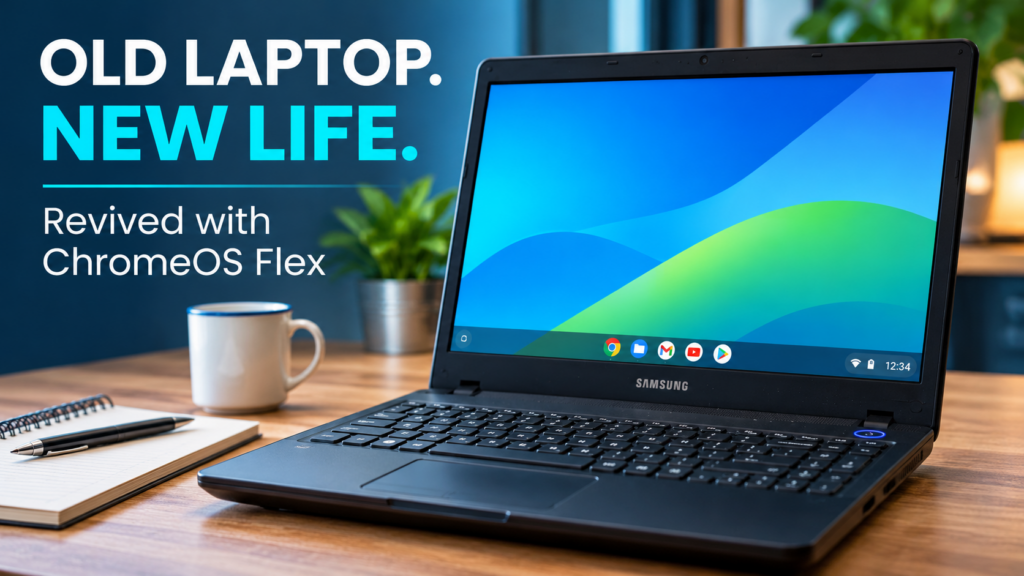
Does an older laptop really need replacing simply because it cannot officially run Windows 11? With the right hardware, a suitable operating system, and a little technical knowledge, many ageing computers can remain useful long after their original operating system has reached the end of its supported life.
Recently, I decided to put this theory to the test with an older Samsung laptop equipped with a third-generation Intel Core i5 processor, 8 GB of RAM, and a 120 GB solid-state drive.
Rather than discard a perfectly serviceable computer, I wanted to investigate whether Google ChromeOS Flex could provide a secure, lightweight alternative for everyday computing.
The project wasn’t entirely straightforward. There were firmware boot problems, ChromeOS kernel errors, EFI troubleshooting, and several unsuccessful attempts to get the internal SSD booting correctly.
However, the eventual result was a successful ChromeOS Flex installation, working wireless networking, functioning audio, video playback, and successful operating system updates.
The Hardware: An Older Samsung Laptop
The laptop used for this experiment had the following specifications:
| Component | Specification |
|---|---|
| Manufacturer | Samsung |
| Processor | Intel Core i5, 3rd Generation |
| Memory | 8 GB RAM |
| Storage | 120 GB SATA SSD |
| Replacement OS | Google ChromeOS Flex |
| Boot Configuration | UEFI / GPT |
Although this hardware is old by modern computing standards, it remains capable of handling many everyday tasks. The SSD provides responsive storage, while 8 GB of memory is sufficient for a range of browser-based applications.
The question was whether the operating system could make effective use of those resources.
Why Consider ChromeOS Flex?
ChromeOS Flex is a cloud-focused operating system developed by Google for compatible existing PCs and Macs.
It is designed around the Chrome browser and web-based applications, making it potentially suitable for devices used primarily for email, internet browsing, online documents, and cloud services.
Some potential advantages include:
- Extended Hardware Life: Compatible older computers can remain useful without immediately requiring replacement.
- Reduced Software Overhead: A browser-focused environment may be better suited to older hardware than a more demanding desktop installation.
- Automatic Updates: ChromeOS Flex provides an integrated operating system update mechanism.
- Cloud Integration: Google Workspace and other browser-based services can be accessed directly.
- Reduced Electronic Waste: Reusing suitable equipment avoids unnecessary disposal and replacement.
However, ChromeOS Flex is not a direct replacement for Windows in every environment. Traditional Windows desktop applications cannot simply be transferred across, and ChromeOS Flex does not provide native Google Play Store or Android application support.
It is also important to distinguish between hardware that happens to run ChromeOS Flex and hardware that Google has officially certified. Compatibility, functionality, and the available support period should always be assessed before business deployment.
Step 1: Prepare the ChromeOS Flex Installation USB
The first stage was preparing bootable installation media.
Google provides the Chromebook Recovery Utility, which can create ChromeOS Flex installation media using a suitable USB drive.
- Install the Chromebook Recovery Utility extension in Google Chrome.
- Launch the utility and select the option to identify the device from a list.
- Choose Google ChromeOS Flex as the manufacturer and product.
- Select the intended USB drive.
- Allow the utility to download and write the recovery image.
Important: Creating recovery media erases the selected USB drive. Always verify the correct device before proceeding.
The Samsung successfully booted ChromeOS Flex from the USB, demonstrating that the processor, graphics subsystem, and basic hardware were capable of running the operating system.
That was encouraging, but running successfully from USB does not guarantee that the same computer will boot correctly following installation to its internal SSD.
Step 2: The First Installation Encountered Boot Problems
The initial installation appeared to complete, but the laptop did not successfully start ChromeOS Flex from its internal SSD.
Instead, the boot process reported an error from the ChromeOS Flex bootloader:
Boot error in crdyboot-1.0.6: failed to load the flexor kernel
Further diagnostic information included a UEFI kernel-loading failure:
LoadKernel failed: 0x100b2000
This suggested that the boot process was failing while attempting to load the operating system kernel.
Importantly, the error did not automatically mean that the SSD itself was defective. It could also indicate an issue involving the installed boot configuration, firmware compatibility, or the operating system’s kernel-loading mechanism.
Step 3: Investigate the SSD and EFI Boot Configuration
To investigate further, I booted the laptop using a Linux Lite live environment and examined the internal SSD.
Linux utilities including lsblk, parted, sgdisk, and efibootmgr provided information about the storage layout and firmware boot entries.
The ChromeOS Flex installation used a GPT partition table containing multiple partitions, including separate kernel and root filesystem partitions.
Some of the more significant findings included:
- EFI System Partition: The installation contained an accessible EFI partition with bootloader files.
- Kernel A: The first kernel partition appeared empty when its initial sectors were examined.
- Kernel B: The alternative kernel partition contained a recognisable ChromeOS kernel signature.
- Kernel Images: The EFI partition contained Linux kernel images for the available boot configurations.
- Firmware Entries: The laptop’s UEFI boot configuration contained several existing boot entries.
ChromeOS uses an A/B partition approach to support system updates and recovery. The presence of separate kernel partitions is therefore normal, although the observed partition contents justified further investigation.
The findings helped narrow the investigation, but they did not conclusively establish why the original bootloader failed.
Step 4: Test an Alternative GRUB Boot Path
As part of the investigation, I configured an additional UEFI boot entry using GRUB.
The objective was to determine whether the ChromeOS Flex kernel could be started using an alternative bootloader path rather than relying entirely on the failing ChromeOS boot mechanism.
The new boot entry successfully launched GRUB and displayed the available ChromeOS Flex boot options.
However, selecting the alternative kernel resulted in the computer freezing during the boot process.
The system displayed:
Booting a command list
The display then remained frozen with a stationary cursor.
Additional diagnostic attempts, including changes to kernel boot parameters, did not resolve the problem.
This was useful information: GRUB itself was loading, but the operating system was not successfully progressing into a usable session.
Key lesson: A successfully loaded bootloader does not necessarily mean that the operating system kernel will initialise correctly. Boot failures need to be investigated at the appropriate stage rather than assuming that every problem is caused by the EFI configuration.
Step 5: Return to a Clean Installation
At this stage, it was worth reconsidering the amount of troubleshooting being invested in a computer that contained no information requiring preservation.
Rather than continuing to modify an unsuccessful installation, I removed the SSD and connected it to another computer.
Using Windows DiskPart, I cleaned the drive and prepared it with a GPT partition table.
The SSD was then refitted into the Samsung laptop, and the system was started again from the ChromeOS Flex recovery USB.
Before reinstalling, I verified the available storage devices using ChromeOS system information.
| Device | Identified Hardware |
|---|---|
/dev/sda |
Internal 120 GB SSD |
/dev/sdb |
ChromeOS Flex USB installation media |
The internal SSD was correctly detected, and the installer was able to proceed.
Important: DiskPart’s clean command removes partition information from the selected disk. It must never be used without confirming the correct disk and ensuring that important information has been backed up.
Step 6: ChromeOS Flex Installs Successfully
The second installation completed successfully and displayed the expected confirmation message:
Installation complete. Remove the USB before turning your device back on.
The laptop shut down automatically.
After removing the USB installation media, I powered the Samsung back on.
This time, ChromeOS Flex booted successfully from the internal SSD.
No additional GRUB configuration was required, and the operating system started using its normal installation boot process.
The exact reason the earlier installation failed was not conclusively identified. However, the successful clean installation demonstrated that the Samsung could boot ChromeOS Flex from its internal storage.
Step 7: Updates and Real-World Testing
A successful installation is only the beginning. Before considering any refurbished computer suitable for everyday use, its hardware and software need to be tested.
After the first successful boot, ChromeOS Flex downloaded and applied operating system updates.
The laptop restarted following the update process and continued operating successfully.
Initial functionality testing produced the following results:
| Test | Result |
|---|---|
| Boot from internal SSD | Successful |
| Operating system updates | Installed and restarted |
| Wireless networking | Working |
| Video playback | Working during initial testing |
| Audio playback | Working |
| Function keys | Some mappings incorrect |
| Sleep, webcam and Bluetooth | Not yet fully verified |
The initial results were encouraging. The computer could connect to the internet and play video with working audio, despite its age.
There was one minor compatibility issue: several function keys did not behave as expected. This is not particularly surprising when running a different operating system on hardware originally designed for Windows.
Further testing of power management and peripheral compatibility would still be advisable before relying on the laptop for regular use.
What About Windows 11 and Older Hardware?
Windows 10 reached the end of its standard support lifecycle in October 2025, creating a challenge for organisations and individuals with older computers that do not meet Microsoft’s official Windows 11 hardware requirements.
A third-generation Intel Core i5 is outside the normal supported processor requirements for Windows 11.
That does not automatically make the computer physically unusable. It means that an appropriate, supported operating system and workload need to be considered.
ChromeOS Flex may be one option, particularly where the intended workload is primarily browser-based.
Other options may include a supported Linux distribution, appropriate extended security support where available, or replacing the hardware when compatibility, performance, or business requirements justify doing so.
The important principle is to make the decision based on risk, supportability, functionality, and cost rather than hardware age alone.
Could ChromeOS Flex Help Small Businesses and Schools?
For some organisations, extending the life of existing equipment could reduce capital expenditure and unnecessary electronic waste.
Potential use cases include:
- Browser-Based Workstations: Devices used mainly for email, cloud applications, and web portals.
- Training Environments: Suitable devices for browser-based learning and online resources.
- Community and Charity Projects: Refurbishing donated equipment for appropriate users.
- Secondary Computers: Providing additional devices for lightweight tasks.
- Temporary Workstations: Using existing hardware where the required applications are compatible.
However, businesses must consider application compatibility, peripheral support, identity management, data protection, and ongoing security updates.
ChromeOS Flex is not automatically the right solution for every environment. Specialist Windows applications, legacy peripherals, and hardware-specific features may require an alternative approach.
It is also important to check Google’s current certified-model information and support commitments before deploying ChromeOS Flex across a business or school estate.
Extending Hardware Life Must Not Compromise Security
Reusing older hardware can be sensible, but it must be supported by a proper risk assessment.
Before placing a refurbished computer into service, I would consider:
- Operating System Support: Is the device receiving security updates, and for how long?
- Firmware Security: Are there known BIOS or firmware vulnerabilities that cannot be mitigated?
- Hardware Compatibility: Do networking, graphics, storage, and power-management functions operate reliably?
- Application Requirements: Can users access the systems they need without unsupported workarounds?
- Data Protection: Are account security, encryption, authentication, and device management appropriate?
- Documented Risk: Have any limitations been assessed, recorded, and accepted by the appropriate decision-makers?
Simply installing a newer operating system does not eliminate every security concern associated with ageing hardware.
A successful refurbishment should deliver a computer that is useful, reliable, and appropriate for its intended security requirements.
What Did This ChromeOS Flex Experiment Teach Us?
There were several useful lessons from this project:
- Old Does Not Necessarily Mean Obsolete: A third-generation Core i5 with 8 GB RAM and SSD storage can still handle useful workloads.
- USB Success Is Not Installation Success: Running an operating system from removable media does not guarantee successful internal storage booting.
- Bootloader Errors Need Careful Interpretation: EFI, kernel-loading, and firmware problems can produce similar symptoms.
- Complex Troubleshooting Is Not Always Justified: When no data needs preserving, a clean installation may be more efficient than extensive repair work.
- Hardware Testing Matters: Wireless networking, audio, graphics, updates, and power management should be checked individually.
- Security Remains Essential: Any extension of a device’s working life must be balanced against supportability and cybersecurity risk.
The Final Outcome: A Samsung Laptop Given a Second Life
After a challenging start, the Samsung laptop successfully installed and booted ChromeOS Flex from its 120 GB SSD.
The operating system applied updates and restarted successfully. Wi-Fi connectivity, video playback, and audio were also confirmed working during initial testing.
Some function-key mappings were incorrect, and further compatibility checks remained worthwhile, but the initial results demonstrated that the computer could perform useful everyday tasks.
For a machine built around a third-generation Intel Core i5, that is an encouraging outcome.
More importantly, the project illustrates a wider principle in IT infrastructure management.
Not every ageing computer needs replacing. Sometimes the better solution is to understand the requirements, assess the risks, and make more effective use of the equipment already available.
Could Your Business Get More Life From Its Existing IT Equipment?
At Paul Clarke IT Consultancy, I help businesses in Crewe, Nantwich, Sandbach, and the surrounding areas make informed decisions about their IT infrastructure.
Whether that involves assessing ageing computers, reviewing technical debt, improving cybersecurity, planning hardware replacements, or identifying opportunities to reuse existing equipment, my approach focuses on practical solutions rather than unnecessary expenditure.
Replacing equipment is sometimes essential. But understanding when replacement is genuinely necessary can save money, reduce disruption, and help organisations make better long-term technology decisions.
Contact Paul Clarke IT Consultancy to discuss your IT support and infrastructure requirements.
Technical Disclaimer: This article documents a real ChromeOS Flex installation and troubleshooting exercise. Compatibility varies between devices, and successful installation does not establish official hardware certification or long-term support. Repartitioning and installing operating systems can permanently erase existing data. Always verify backups, hardware compatibility, current vendor support information, and organisational security requirements before proceeding.