
What is a NAS and do I need one?
NAS Storage Explained – What to Buy and What to Avoid
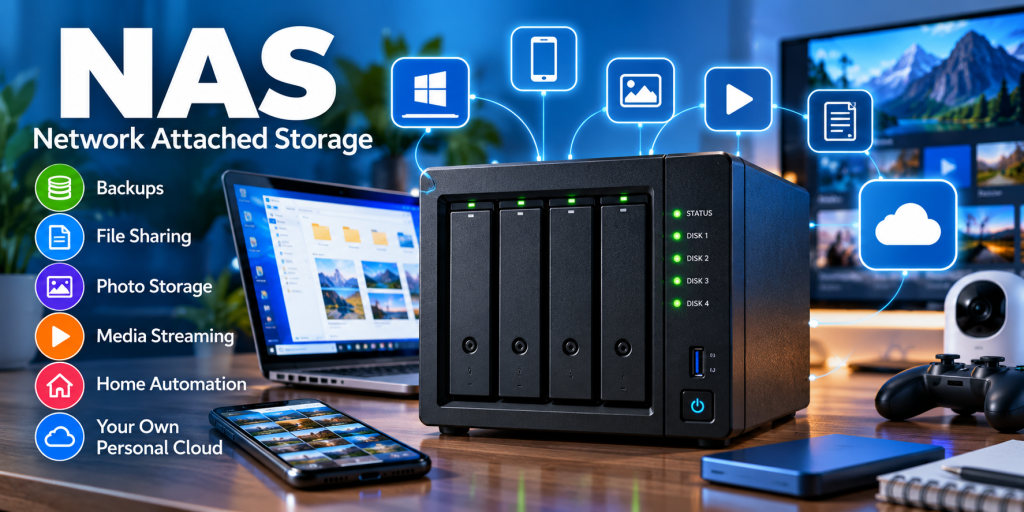
A NAS (Network Attached Storage) is a dedicated device that provides storage to computers, phones, tablets and other devices across your network.
At its simplest, you can think of a NAS as a hard drive that connects to your network rather than directly to one computer. In reality, modern NAS devices can do considerably more. They can back up your computers, automatically store photographs from your phone, stream media, provide remote access to files, run applications and even host virtual machines.
NAS devices range from inexpensive two-bay units costing a few hundred pounds to business systems costing thousands. They may look similar from the outside, but there can be some very significant differences underneath.
What can you use a NAS for?
A NAS provides a central location for storing data that can be accessed by multiple devices and users.
- Back up PCs and laptops
- Automatically back up photographs from phones and tablets
- Store documents and files centrally
- Share files between family members
- Stream movies, music and photographs
- Create your own personal cloud storage
- Access files remotely when away from home
- Store CCTV/security camera recordings
- Run applications and containers
- Provide storage for virtual machines
- Back up other servers or NAS devices
Some higher specification NAS devices are effectively small servers and can run services such as Docker containers, databases, web servers and virtual machines.
Why do some NAS devices cost so much more?
This is one of the most common questions when comparing NAS devices.
You might find one four-bay NAS costing £300 and another apparently similar four-bay NAS costing £1,000 or more. The number of drive bays is only one part of the specification.
The major differences are usually found in the following areas.
Processor
Entry-level NAS devices often use relatively modest ARM processors. These are perfectly adequate for basic file storage and backups.
More expensive models may use considerably more powerful Intel, AMD or higher-performance ARM processors. This becomes important if you want to run several applications, containers, virtual machines, databases or other demanding workloads.
A faster processor can also make a noticeable difference when several people are accessing the NAS simultaneously.
Memory (RAM)
Basic NAS devices may have only 1GB or 2GB of memory, sometimes soldered to the motherboard and therefore impossible to upgrade.
More expensive units may include 4GB, 8GB, 16GB or considerably more, with upgradeable memory slots.
For straightforward file storage you don’t need enormous amounts of RAM. However, additional memory becomes valuable when running applications, containers and virtual machines.
Network speed
Cheap NAS devices commonly include a single 1 Gigabit Ethernet (1GbE) connection.
More capable devices may include:
- 2.5 Gigabit Ethernet
- 5 Gigabit Ethernet
- 10 Gigabit Ethernet
- Multiple network interfaces
- Support for network bonding/link aggregation
- Optional high-speed network expansion cards
A 1GbE connection has a theoretical maximum of 125MB/s. In practice, around 100–115MB/s is a reasonable maximum for large file transfers under good conditions.
A NAS fitted with fast SSDs could be capable of transferring data considerably faster than this, but a 1GbE network connection would become the bottleneck.
This is why more expensive NAS devices increasingly include 2.5GbE or 10GbE networking.
Drive bays
The number of drive bays affects much more than simply how many disks you can install.
A two-bay NAS is excellent for basic home storage, particularly when the two drives are configured as a mirror.
Four or more bays provide considerably greater flexibility. You can use RAID configurations that provide both redundancy and greater usable capacity.
More bays also allow you to increase capacity later without necessarily replacing every drive.
NVMe and SSD support
Some NAS devices have additional M.2 NVMe slots.
Depending on the NAS and its operating system, these may be used for:
- SSD caching
- High-speed storage volumes
- Application storage
- Virtual machine storage
NVMe support can be useful, but don’t automatically assume that adding an NVMe cache will dramatically improve everyday file transfers. The benefit depends heavily on the workload.
Understanding RAID
RAID stands for Redundant Array of Independent Disks. It allows multiple drives to work together to provide additional capacity, performance, redundancy, or a combination of these.
RAID 0 – Maximum capacity, no protection
RAID 0 combines multiple drives into one storage volume.
Two 4TB drives would provide approximately 8TB of raw capacity before formatting and filesystem overheads.
The problem is that there is no redundancy. If either drive fails, the entire RAID array can be lost.
For important personal files, I would generally avoid RAID 0.
RAID 1 – Mirroring
RAID 1 stores the same data on two drives.
Two 4TB drives therefore provide approximately 4TB of usable capacity.
If one drive fails, the data remains available from the other drive while the failed disk is replaced.
For a two-bay NAS containing important data, RAID 1 is usually the sensible choice.
RAID 5
RAID 5 requires at least three drives and distributes data and parity information across them.
It can survive the failure of one drive.
For example, four 4TB drives in RAID 5 would provide roughly 12TB of raw usable capacity before formatting and other overheads.
RAID 6
RAID 6 is similar to RAID 5 but can survive the failure of two drives.
This requires at least four drives and sacrifices additional capacity in return for greater resilience.
It becomes increasingly attractive with larger arrays and high-capacity disks, where rebuilding an array after a drive failure can take a considerable amount of time.
RAID 10
RAID 10 combines mirroring and striping. It requires at least four drives and can provide excellent performance together with redundancy.
The trade-off is capacity: typically only around half of the installed raw storage is usable.
Important: RAID is NOT a backup
This is probably the most important point on this page.
RAID protects against certain disk failures. It does not protect against losing your data.
RAID will not necessarily protect you from:
- Accidentally deleting files
- Ransomware
- File corruption
- Theft
- Fire or flood
- Electrical damage
- Failure of the NAS itself
Important data stored on a NAS should still be backed up somewhere else.
What about NAS-specific hard drives?
NAS manufacturers normally recommend using drives specifically designed for NAS operation.
Examples include product ranges such as WD Red and Seagate IronWolf.
NAS drives are designed for continuous operation and for environments where several drives may be installed closely together.
Before purchasing drives, check the NAS manufacturer’s compatibility list. This becomes particularly important with business and enterprise NAS systems.
Should I use hard drives or SSDs?
Traditional hard drives still provide excellent value when large amounts of storage are required.
SSDs are significantly faster, quieter and have no moving parts, but high-capacity SSD storage remains more expensive.
For most home users storing backups, photographs, documents and media, conventional NAS hard drives remain a sensible choice.
SSDs become particularly attractive when performance matters, such as running virtual machines, databases or applications directly from the NAS.
Your own personal cloud
One of the most useful features of a modern NAS is the ability to create your own personal cloud.
Manufacturers provide applications for Windows, macOS, Android and iPhone that can automatically synchronise files and photographs with the NAS.
This can provide functionality similar to OneDrive, Google Drive or iCloud while keeping the primary copy of your data on equipment that you control.
However, cloud storage can still be extremely valuable as an off-site backup. A good setup may actually use both a NAS and cloud storage rather than treating them as competing technologies.
What are the disadvantages of owning a NAS?
NAS devices have plenty of advantages, but they aren’t suitable for everyone.
- Initial cost: A good NAS and several suitable hard drives can be expensive.
- Power consumption: Unlike a USB disk, a NAS will often operate 24 hours a day.
- Noise: Mechanical hard drives and cooling fans can be audible.
- Maintenance: The NAS operating system and applications need security updates.
- Drive failures: Hard drives eventually fail and need replacing.
- Configuration: RAID, permissions, remote access and backups need to be configured correctly.
- Security: Exposing a NAS directly to the Internet can introduce significant security risks.
In particular, I would avoid simply opening ports on your router to make the NAS management interface available from the Internet. Use the manufacturer’s supported remote-access system or a properly configured VPN where appropriate.
Cheap NAS vs expensive NAS – which should I buy?
There is little point buying an expensive NAS if all you need is somewhere to store family photographs and back up a couple of computers.
Equally, buying the cheapest model available can be a false economy if you later discover that you need faster networking, additional drive bays or more memory.
Basic home use
A two-bay NAS with RAID 1 is often ideal for:
- PC backups
- Family photographs
- Documents
- Basic file sharing
- Occasional media streaming
Enthusiast / advanced home use
Consider a four-bay NAS with more memory and 2.5GbE networking if you want:
- A large media collection
- Several users
- Containers
- Home automation
- Security camera storage
- More expansion options
Small business / power user
Look towards higher-performance four-bay or larger systems if you need:
- 10GbE networking
- Large numbers of simultaneous users
- Virtual machines
- Business applications
- Large backup repositories
- Snapshot and replication features
- Redundant power supplies
- Long-term expansion
What should I look for when buying a NAS?
Before buying, ask yourself:
- How much storage do I need today?
- How much might I need in three to five years?
- How many drive bays do I need?
- Do I need 2.5GbE or 10GbE networking?
- Can the memory be upgraded?
- Does it support NVMe storage?
- Will I run applications or just store files?
- Do I want automatic mobile photo backups?
- How will I back up the NAS itself?
- How long does the manufacturer provide software and security updates?
Don’t concentrate solely on the amount of storage supplied. The processor, memory, networking, expansion options and quality of the NAS operating system can be equally important.
So, is a NAS worth it?
For many homes and small businesses, yes.
A NAS provides a convenient central location for files, photographs and backups while allowing multiple devices to access the same data.
It can also reduce reliance on monthly cloud-storage subscriptions and provide services that would otherwise require a dedicated server.
However, buying a NAS is only part of the solution. It needs to be configured correctly, kept updated and included in a proper backup strategy.
If you’re simply backing up one computer, an external USB drive may be all you need. But if you have several computers, a growing photograph or media collection, multiple users, or want greater control over where your data is stored, a NAS starts to make a great deal of sense.
Need help choosing a NAS?
Choosing between different NAS models, drives and RAID configurations can quickly become confusing. The cheapest option isn’t always the best value, and the most expensive model isn’t necessarily the right one either.
The important thing is choosing a system that suits how you intend to use it and gives you enough room to grow.
If you need help selecting, installing or configuring network storage for your home or small business, get in touch.