
Upgrade to an SSD
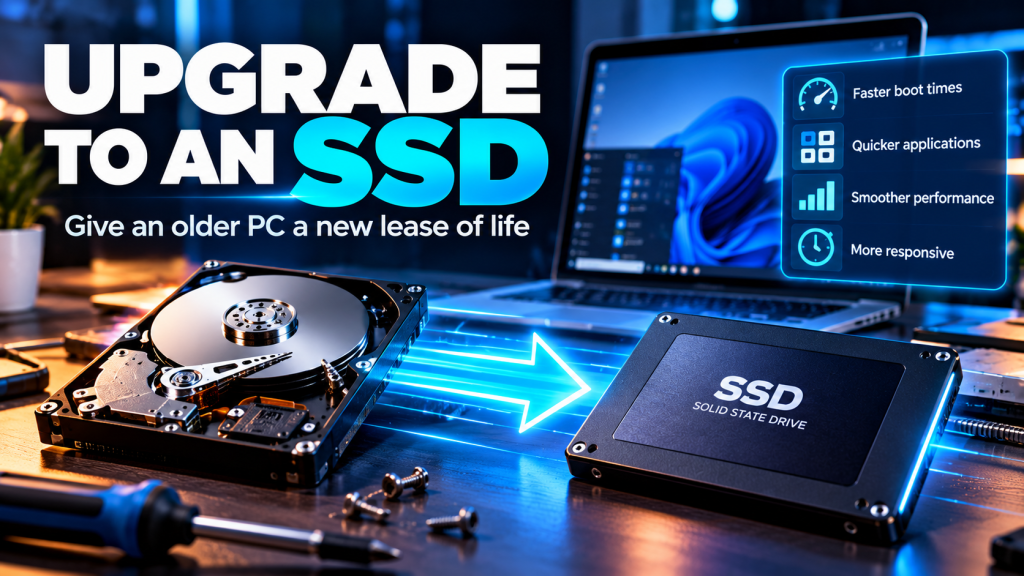
Upgrade to an SSD
Before replacing a slow computer, there may be a much cheaper solution. Replacing an old mechanical hard drive with an SSD can completely transform the way a PC feels.
We’ve probably all used one.
A computer that takes forever to start. You click an application and wait. Windows eventually appears, but everything feels painfully slow.
It is very easy to assume the computer itself is simply too old.
But sometimes the processor and memory are perfectly adequate.
The real problem may be the device storing Windows and all your files.
The humble mechanical hard drive.
What is an SSD?
SSD stands for Solid State Drive.
It performs the same basic job as a traditional hard disk drive: storing Windows, applications, photographs, documents and other data.
But the technology inside it is completely different.
A traditional hard disk drive contains rapidly spinning magnetic platters and a mechanical arm that physically moves across those platters to read and write information.
An SSD has no moving parts. Instead, it stores information electronically using flash memory.
That difference can have an enormous impact on everyday computer performance.
HDD vs SSD
| Feature | Traditional HDD | SSD |
|---|---|---|
| Technology | Spinning magnetic platters | Flash memory |
| Moving parts | Yes | No |
| Performance | Relatively slow | Much faster |
| Noise | Can be audible | Silent |
| Shock resistance | More vulnerable | Generally better |
| Power consumption | Typically higher | Typically lower |
What difference does an SSD actually make?
This is the important bit.
Upgrading from a mechanical hard drive to an SSD doesn’t simply make copying files faster. It affects almost everything the computer does because Windows is constantly reading and writing data.
Faster startup
Windows can boot considerably faster because the operating system files can be accessed much more quickly.
Quicker applications
Programs generally open much faster and feel considerably more responsive.
Faster file access
Opening folders, searching files and working with documents becomes noticeably quicker.
A more responsive PC
The entire computer can feel smoother because it spends less time waiting for storage.
Why do older computers feel so slow?
A mechanical hard drive can become one of the biggest bottlenecks in an otherwise perfectly usable computer.
Modern operating systems perform huge numbers of small disk operations.
Windows may simultaneously be:
- loading applications
- installing updates
- running antivirus scans
- indexing files
- using virtual memory
- synchronising OneDrive
- writing logs
- loading background services
A mechanical disk has to physically move its read/write heads around the disk to service these requests.
An SSD is vastly better suited to this kind of workload.
SATA SSD or NVMe SSD?
Not all SSDs are the same.
The two types you’re most likely to encounter are SATA and NVMe.
SATA SSD
A 2.5-inch SATA SSD is often an excellent upgrade for an older laptop or desktop containing a traditional hard drive.
It uses the familiar SATA interface and can usually replace a 2.5-inch hard disk directly.
NVMe SSD
NVMe SSDs normally connect through an M.2 slot and use PCI Express rather than the traditional SATA interface.
They can provide considerably higher performance, but the computer must support the appropriate drive and interface.
Can every computer be upgraded?
Not necessarily.
Before buying an SSD, it is important to check exactly what the computer supports.
Things to check include:
- whether the existing drive is SATA or NVMe
- the physical size of the existing drive
- whether an M.2 slot is available
- which type of M.2 drive the system supports
- whether the storage is soldered to the motherboard
- how difficult the laptop or desktop is to dismantle
⚠️ M.2 does not automatically mean NVMe
M.2 describes the physical form factor. Depending on the computer, an M.2 slot may support SATA, NVMe or both. Check the system specification before buying a drive.
Clone the old drive or reinstall Windows?
Once you’ve chosen the correct SSD, there are two common ways to perform the upgrade.
Clone the existing drive
The contents of the existing disk are copied onto the new SSD.
This means Windows, applications, settings and files can remain largely as they were before the upgrade.
For a healthy Windows installation, cloning can be a very convenient option.
Perform a clean installation
Windows is installed fresh onto the new SSD and applications are then reinstalled.
This takes longer to configure but can be a better choice if the existing Windows installation has accumulated years of problems or unwanted software.
How does cloning work?
Although the exact process varies depending on the computer and cloning software, the basic procedure looks something like this:
Check the computer
Confirm which type of SSD is compatible and determine the capacity required.
Back up important files
Make sure anything important exists somewhere else before making changes to the storage device.
Connect the new SSD
The SSD may be connected using a USB adapter, external enclosure or directly inside the computer.
Clone the old drive
Disk cloning software copies the required partitions and data from the old disk to the SSD.
Install the SSD
The old disk is removed or disconnected and the SSD is fitted into the computer.
Boot and test
Windows is started from the new SSD and the system is checked to make sure everything is working correctly.
Back up before you start
This deserves its own section.
⚠️ Cloning is not a backup
Before replacing or cloning a drive, make sure important files are backed up independently. If the original disk fails during the process, the data may otherwise be lost.
This is particularly important if the reason for replacing the disk is because the original hard drive is already showing signs of failure.
Is my old hard drive failing?
Sometimes a slow computer simply has a slow mechanical drive.
Other times, the disk may actually be failing.
Possible warning signs include:
- unusual clicking or grinding noises
- Windows repeatedly freezing
- files becoming corrupted
- extremely slow file access
- disk errors appearing in Windows
- SMART health warnings
- the computer occasionally failing to detect the drive
If the drive may be failing, prioritise the data
Repeatedly stressing a failing mechanical disk while attempting repairs can make matters worse. Important data should be secured before worrying about making Windows faster.
Should I upgrade the RAM as well?
Possibly.
An SSD and additional memory solve different performance problems.
The SSD improves storage performance. RAM determines how much working memory Windows and your applications have available.
If an older computer has a mechanical hard drive and only a small amount of RAM, upgrading both can sometimes produce an enormous improvement.
RAM: helps the computer cope with more applications and data at the same time.
However, RAM isn’t automatically worth upgrading. The right amount depends on what the computer is used for and what the hardware supports.
When is an SSD upgrade worth doing?
An SSD upgrade makes particularly good sense when:
- the computer still has a mechanical hard drive
- the processor is still adequate for the required workload
- the machine has sufficient RAM or can be upgraded
- Windows and applications are generally working correctly
- the computer is physically in good condition
- the cost of upgrading is substantially less than replacing the machine
When isn’t it worth doing?
Sometimes an SSD isn’t going to save the machine.
If the computer has a very old processor, insufficient memory, hardware faults, poor battery life and cannot run a currently supported operating system, spending money upgrading it may simply delay the inevitable.
This has become particularly relevant with modern Windows hardware requirements.
A computer may run beautifully with an SSD but still be unsuitable for current Windows versions if its processor, TPM or other hardware does not meet the requirements.
What about laptops?
Laptops can often benefit even more from an SSD upgrade.
As well as improved performance, an SSD has no spinning platters or moving read/write heads. That makes it better suited to a device that gets carried around.
SSDs also generally consume less power than mechanical hard drives, although the actual effect on battery life depends on the laptop and workload.
The biggest issue is accessibility.
Some laptops make storage replacement extremely easy. Others seem to have been designed by somebody who considers opening the bottom cover a personal challenge.
Do I need to buy a new computer?
Not always.
If your existing computer is reliable, suitable for the applications you use and capable of running a supported operating system, replacing a mechanical disk with an SSD can be a very cost-effective alternative to replacing the entire machine.
It can also reduce electronic waste by extending the useful life of existing hardware.
Give your computer a new lease of life
If your desktop or laptop still uses a traditional mechanical hard drive, an SSD upgrade could make a dramatic difference to everyday performance.
The existing drive can often be cloned onto the new SSD, allowing you to keep your Windows installation, applications, settings and files while benefiting from much faster storage.
Sometimes the best computer upgrade isn’t buying a new computer at all.