Patching – OS and Applications
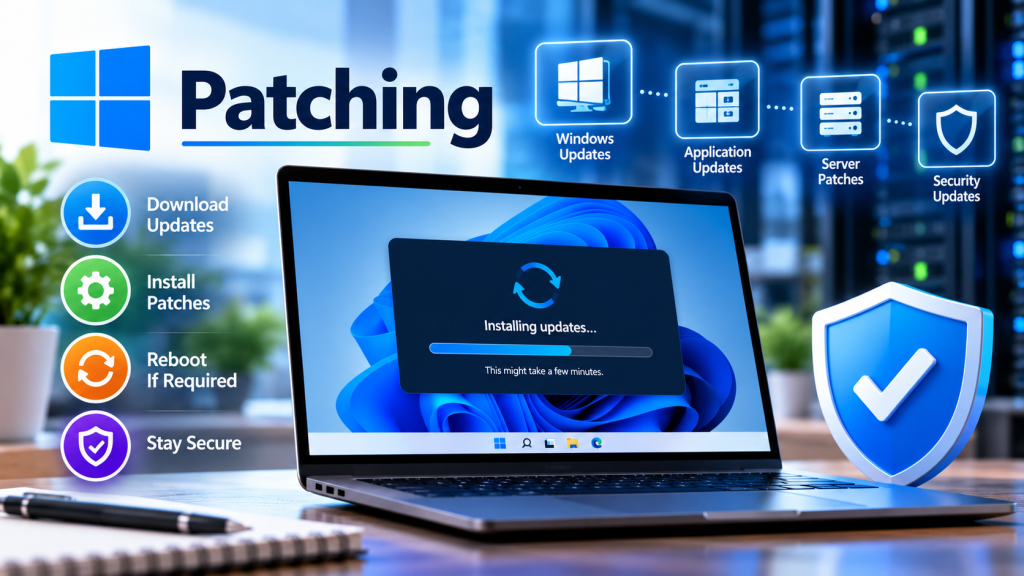
Operating system updates, application patching, and driver updates form the absolute cornerstone of modern digital security and system stability. While it is easy to view update notifications as an annoying interruption, delaying them leaves a door wide open for cybercriminals. In today’s interconnected environment, keeping your system safe requires look beyond just operating system updates—you must maintain a comprehensive strategy that covers your software ecosystem and hardware components as well.
The Basics: What You Need to Manage Updates Effectively
To implement a reliable update and patching routine on your device, ensure you have the following configuration baselines:
- Operating System Tools: Access to built-in utilities like Windows Update and the Microsoft Store.
- Internet Connectivity: An unmetered, stable internet connection to prevent interrupted downloads that can lead to file corruption.
- Administrative Access: A user account with administrator privileges, which is required to write system files, update the registry, and replace hardware drivers.
- System Backups: A recent backup or an active System Restore point to act as a safety net before installing major software changes.
How to Configure and Automate Windows Update
Windows handles core operating system updates automatically, but you should configure it properly to ensure it catches everything without disrupting your workflow:
- Open the Start Menu, select Settings (the gear icon), and click on Windows Update.
- Click on Advanced options to fine-tune your delivery behavior.
- Toggle on Receive updates for other Microsoft products so that apps like Office get patched at the same time.
- Configure your Active hours to specify when you typically use the device. This ensures Windows won’t force a sudden restart while you are working.
- Return to the main page and click Check for updates to pull down any pending security definitions immediately.
Beyond Windows: Patching Third-Party Apps and Drivers
Securing the operating system is only half the battle. You must actively maintain the secondary layers of your computer:
- Patching Third-Party Software: Many popular desktop apps do not use Windows Update. Open software like web browsers (Chrome, Firefox), media tools, and password managers, navigate to their “About” or “Settings” menus, and trigger their internal update tools. Alternatively, use a package manager like Windows Package Manager (
winget upgrade --allvia PowerShell) to update everything at once. - Updating Hardware Drivers: Drivers are the software translators that let Windows talk to your hardware components. For critical pieces like your graphics card, download dedicated management software (such as NVIDIA GeForce Experience or AMD Software). For other system components like chipsets and network adapters, look under the Optional updates section inside Windows Update.
Why a Total Patching Strategy is Critically Important
Maintaining a rigorous update schedule across your entire computer architecture offers massive practical benefits:
- Closing Exploitation Windows: Hackers constantly target vulnerabilities in ubiquitous software like Adobe Acrobat or browser extensions. Application patching closes these security gaps before malware can weaponise them.
- Eliminating Zero-Day Risks: When a major software flaw is discovered actively being used by criminals (a zero-day vulnerability), developers rush out an emergency patch. Installing it immediately protects you from active threats.
- Boosting System Performance: Driver updates frequently contain stability fixes that stop unexpected Blue Screen of Death (BSOD) crashes, eliminate memory leaks, and unlock significant performance gains in modern games and heavy creative workloads.
The Challenges and Limitations of Patching
Despite its absolute necessity, managing updates is rarely a perfect process and comes with real-world drawbacks:
- Update Regressions (“Bugs”): Occasionally, an update can conflict with a specific hardware configuration, introducing a brand-new bug or rendering a stable piece of software unusable.
- System Downtime: Major operating system rollouts and driver changes require full system reboots, which can temporarily disrupt productivity if not scheduled during off-hours.
- Legacy Incompatibility: Updating core system components can sometimes cause old, legacy business software or ancient peripheral hardware (like older printers) to stop functioning entirely.
Direct Comparison: Automatic vs. Manual Patching
Deciding how to manage updates involves balancing convenience against absolute control over your environment:
| Patching Approach | Pros | Cons |
|---|---|---|
| Automatic Updates | Maximum security peace of mind; updates run in the background; requires zero daily effort. | Risk of unexpected restarts; bad patches install immediately before you can read user reviews. |
| Manual Updates | Total control over what enters your machine; allows you to delay updates until bugs are ironed out. | High risk of human forgetfulness; leaves system exposed to active threats for longer periods. |