Hyper-V on Windows 11
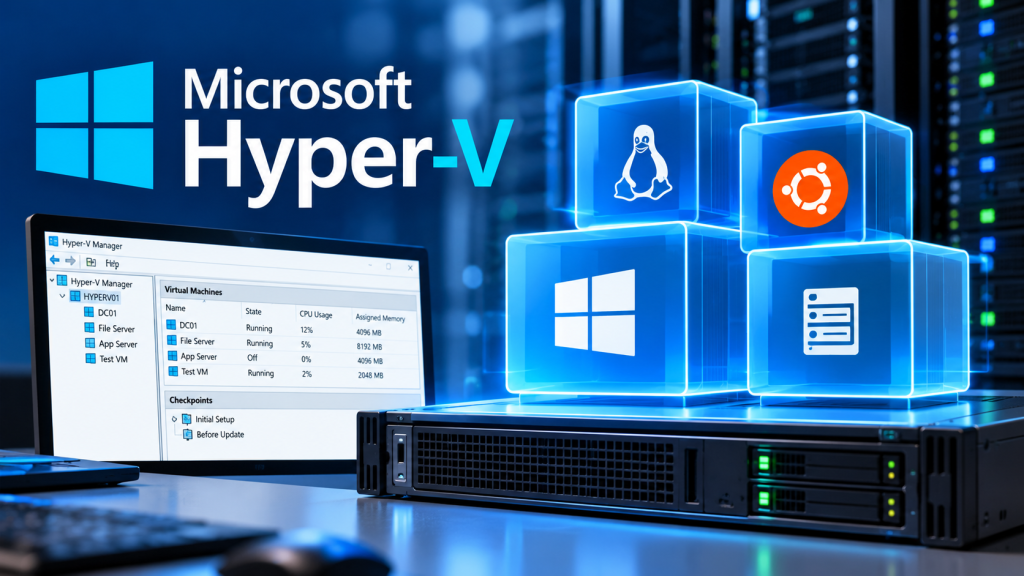
Microsoft Hyper-V is a native, bare-metal (Type-1) hypervisor built directly into Windows 11. Unlike standard software-based virtualisation, Hyper-V runs directly on your computer’s hardware, allowing you to create and manage multiple virtual machines (VMs) with incredible speed and efficiency. Whether you need to test software across different operating systems or set up a secure lab environment, Hyper-V provides enterprise-grade virtualisation right on your desktop.
System Requirements: What You Need to Run It
Because Hyper-V interacts deeply with your hardware, your system must meet these specific prerequisites:
- Operating System: Windows 11 Pro, Enterprise, or Education edition (Windows 11 Home does not support Hyper-V natively).
- Processor: A 64-bit CPU with Second Level Address Translation (SLAT).
- BIOS Features: Hardware-assisted virtualisation (Intel VT-x or AMD-V) and Data Execution Prevention (DEP) must be enabled in your system’s BIOS/UEFI.
- Memory: Minimum of 4 GB RAM, though 8 GB or more is highly recommended depending on how many VMs you plan to run simultaneously.
How to Enable Hyper-V and Its Management Tools
Hyper-V is turned off by default in Windows 11. To activate the hypervisor along with the Hyper-V Manager and command-line tools, follow these steps:
- Click the Start Menu, type
Turn Windows features on or off, and press Enter. - Locate Hyper-V in the list and expand it.
- Ensure both checkboxes are ticked: Hyper-V Management Tools and Hyper-V Platform.
- Click OK. Windows will download and install the required components.
- When prompted, click Restart now to complete the installation.
How to Configure and Connect Your Network
To give your virtual machines internet access—or isolate them entirely—you need to use the Virtual Switch Manager inside the Hyper-V Manager app:
- To Connect to the Internet: Create an External Virtual Switch. This binds the virtual switch to your physical network card (Wi-Fi or Ethernet), allowing the VM to get its own IP address from your home or office router.
- To Isolate the Network: Create an Internal or Private Virtual Switch. An Internal switch allows VMs to talk to each other and your host machine, but has no internet access. A Private switch completely isolates the VMs, allowing them to only communicate with one another—perfect for safe malware testing.
How to Create a Windows 11 Virtual Machine
Setting up a Windows 11 guest VM requires meeting the same strict security conditions as a physical machine, such as TPM 2.0 and Secure Boot. Follow this sequence:
- Download the official Windows 11 ISO file from Microsoft’s website.
- Open Hyper-V Manager, right-click your computer name in the left pane, and select New > Virtual Machine.
- In the wizard, name your VM and select Generation 2 (required for Windows 11 features like Secure Boot).
- Assign at least 4096 MB (4 GB) of RAM and connect it to your network switch.
- On the installation options page, select Install an operating system from a bootable image file and browse to your downloaded Windows 11 ISO.
- Crucial Step: Before starting the VM, right-click it in the list, go to Settings > Security, and check the boxes for both Enable Secure Boot and Enable Trusted Platform Module (TPM). Click Apply.
- Double-click the VM, click Start, and follow the standard on-screen Windows 11 installation prompts.
How to Create an Ubuntu Linux Virtual Machine
Hyper-V supports Linux seamlessly, and Microsoft even offers a shortcut tool to get Ubuntu running in minutes without downloading an external file:
- The Quick Method (Recommended): Open Hyper-V Manager and click Quick Create in the right-hand Actions panel. Select Ubuntu from the operating system list and click Create Virtual Machine. Hyper-V will automatically download and install a fully configured, optimized Ubuntu environment for you.
- The Manual Method (ISO): Download the latest Ubuntu LTS ISO file from the official website. Run the New Virtual Machine Wizard, choose Generation 2, assign your RAM, and target your Ubuntu ISO file.
- Linux Security Adjustment: If you install manually via a Generation 2 wizard, you must turn off Windows-specific boot signatures. Go to the VM’s Settings > Security, change the Secure Boot template to Microsoft UEFI Certificate Authority (or disable Secure Boot entirely), otherwise Ubuntu will fail to boot.
How to Add Acceleration for Better Performance
Virtual machines can sometimes feel sluggish, but Hyper-V allows you to inject hardware acceleration to boost speed:
- Enhanced Session Mode: Turn this on in the Hyper-V settings to enable clipboard sharing, audio redirection, and seamless desktop resizing via Remote Desktop Protocol (RDP).
- Dynamic Memory: Enable this within your individual VM settings. It allows Hyper-V to dynamically scale RAM up or down based on what the VM actively needs, preventing an idle machine from hogging host resources.
- GPU Partitioning (GPU-P): For advanced users, you can use PowerShell to share your physical graphics card’s rendering power with a Windows 11 guest VM, drastically speeding up video playback and graphic-heavy tasks.
The Pros and Cons of Windows 11 Hyper-V
Before moving your workflow entirely to Hyper-V, consider how it stacks up against third-party alternatives:
| Pros | Cons |
|---|---|
| Bare-Metal Performance: Runs directly on hardware, offering much faster execution than traditional software hypervisors. | No Native Home Edition: Requires a paid upgrade to Windows 11 Pro if you are running the consumer version. |
| Seamless Integration: No third-party downloads required; works perfectly with Windows security features like VBS. | Software Conflicts: Can sometimes cause performance degradation in third-party tools like VirtualBox or VMware. |
| Snapshot Management: “Checkpoints” let you save the exact state of a VM and roll back instantly if an experiment fails. | Poorer Legacy OS Support: Struggles more with older Linux distributions or legacy operating systems compared to competitors. |