Updating applications on windows.
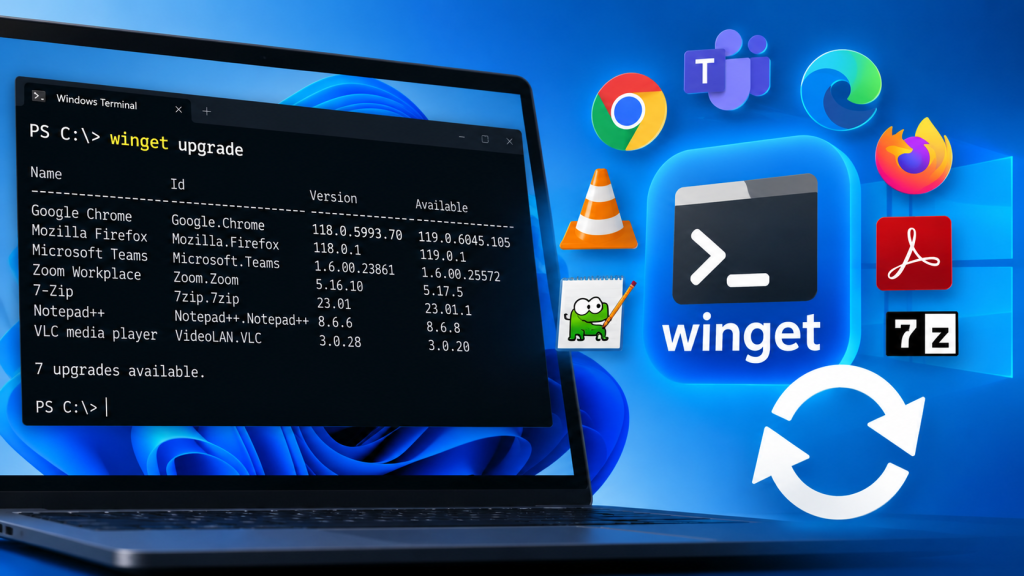
Updating software manually on Windows can be an absolute chore. Clicking through individual update prompts or visiting various websites just to keep your apps secure is a waste of time. Thankfully, Microsoft includes a powerful built-in tool called the Windows Package Manager (WinGet) that lets you update every single application on your PC using just a single command.
In this guide, you’ll learn how to check for outdated software, update individual apps, and run a single command to update everything at once without clicking a single prompt.
Step 1: Open the Terminal as Administrator
To ensure WinGet has the proper permissions to overwrite older application files, you need to run it with administrative privileges.
- Press the Windows Key on your keyboard.
- Type
cmdorPowerShellinto the search bar. - Right-click on the result and select Run as administrator.
Step 2: Check for Available App Updates
Before blindly updating, it’s good practice to see what actually needs an update. Type the following command and press Enter:
winget upgradeWinGet will scan your computer and output a table showing the Name, Id, Version (currently installed), and the latest Available version of your software.
Step 3: Update a Single Application
If you only want to update one specific app, you can do so by targeting its unique Id string pulled from the previous step. Run this command:
winget upgrade --id [Application.ID]For example, if you wanted to update Google Chrome, you would use:
winget upgrade --id Google.ChromeStep 4: The Magic Command – Update All Apps at Once
Instead of doing it one by one, you can instruct WinGet to completely refresh every single compatible app installed on your machine. Run this command:
winget upgrade --allPro-Tip: Fully Automated and Silent Upgrades
By default, the standard upgrade command might still pop up terms of service prompts or require you to click “Next” on installer screens. If you want a 100% hands-off experience—ideal for scripts or automation—you can combine special flags to accept all agreements and hide the installer UI:
winget upgrade --all --silent --accept-package-agreements --accept-source-agreementsHere is what each of these powerful switches does:
--all: Targets every outdated application found on your system.--silent: Runs the underlying installers quietly in the background without popping up setup windows.--accept-package-agreements: Automatically accepts any End User License Agreements (EULAs) required by individual software packages.--accept-source-agreements: Bypasses the initial prompt to accept Microsoft’s terms for connecting to the WinGet repository.
This ultimate combination is perfect to toss into a Windows Batch file (.bat) and hook up to Task Scheduler to ensure your system updates itself silently every day.