How to Fix Common Printer Problems: A Step-by-Step Troubleshooting Guide
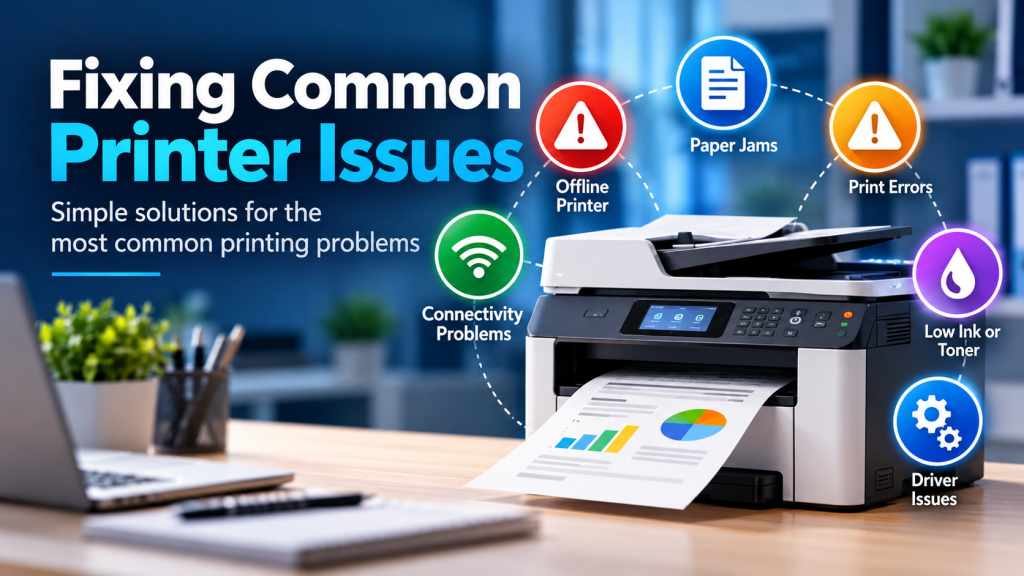
Few office frustrations match the annoyance of pressing “Print” and having absolutely nothing happen. Printer errors are notoriously common, but the vast majority of these issues aren’t caused by broken hardware—they are caused by simple communication breakdowns between your computer and the printer.
Before you give up or call out an expensive technician, you can resolve most printing stalls by methodically checking a few software and network settings.
Here is a step-by-step diagnostic guide to get your documents out of the digital queue and onto paper.
1. Verify the Network Connection and IP Address
If your computer cannot find the printer, the two devices are likely struggling to talk across your local network. This is especially true for wireless office printers.
- Check the physical link: For wired setups, unplug and firmly re-seat the Ethernet or USB cable. For wireless setups, check the printer’s built-in screen to ensure the Wi-Fi icon is solid, not blinking.
- Match the IP address: Routers occasionally assign a new IP address to a printer when it restarts, causing your computer to look for it in the wrong place. Print a “Network Configuration Page” directly from your printer’s settings menu to find its current IP address.
- Verify the port settings: On your PC, open your printer settings, look at the “Ports” tab, and ensure the configuration matches the exact IP address displayed on the page you just printed. If it does not match, add a new standard TCP/IP port using the correct address.
2. Clear a Jammed Print Queue
When a single document fails to print due to an error, it clogs the pipeline. Every document you send afterward will simply pile up behind it, waiting indefinitely.
- Open the queue: Navigate to your system’s printer status window to see the list of pending documents.
- Cancel the jobs: Right-click the stuck document and select “Cancel”. If the document status shifts to “Deleting…” but remains stuck there for minutes, the system is locked up and you will need to manually purge the service.
3. Restart the Windows Print Spooler Service
If the print queue refuses to clear, the background service responsible for managing your print jobs—known as the Print Spooler—has likely crashed. Restarting it resets the software environment without needing a full system reboot.
- Open Services: Press the Windows Key + R, type
services.mscinto the run box, and hit Enter. - Locate the Spooler: Scroll down the alphabetical list until you find the service named “Print Spooler”.
- Restart the process: Right-click “Print Spooler” and click “Stop”. Wait a few seconds, right-click it again, and select “Start”. This clears out the digital jam and instantly refreshes your system’s connection to the hardware.
4. Update or Reinstall Corrupted Print Drivers
A print driver is the translator that converts your digital document into a language the physical printer understands. If a recent operating system update occurs, an outdated driver can suddenly stop working.
- Check for errors: If you see a generic “Driver Unavailable” message next to your device, the translation software is broken.
- Download directly from the source: Avoid relying solely on generic Windows update drivers. Visit the official support website for your printer manufacturer (e.g., HP, Canon, Brother, Epson).
- Perform a clean install: Search for your specific printer model number, download the latest software package, and install it. This completely replaces any corrupted files and restores missing advanced printing features.