How to Fix Bad Wi-Fi: Router Placement Tips and Signal Diagnostics
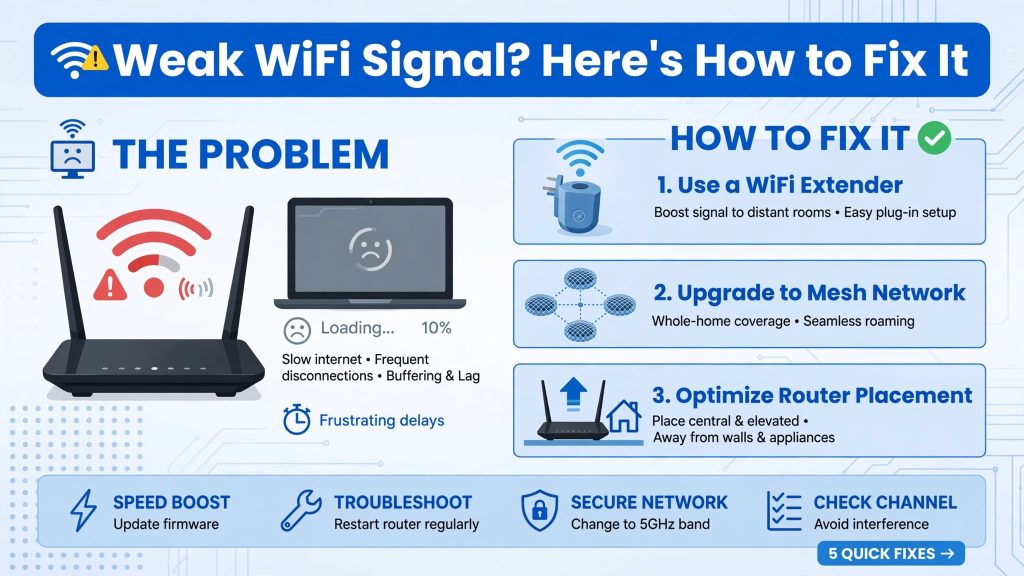
Few things are more frustrating than a video call cutting out mid-sentence or a webpage that refuses to load. In most homes and offices, the issue isn’t the actual internet speed coming into the building—it is the Wi-Fi distribution.
Wi-Fi signals are easily blocked, absorbed, and deflected by the environment around them. If you are struggling with dropouts or slow speeds, simple adjustments to your hardware placement and basic diagnostic checks can completely transform your network performance.
Here is how to map your space, optimize your hardware, and eliminate dead zones for good.
1. The Golden Rules of Router Placement
Before changing any software settings, look at where your router lives. Think of your router like a lightbulb; if it is hidden away, the light (or signal) cannot illuminate the rest of the building. Maximize your coverage by following these placement guidelines:
- Centralize the hub: Routers broadcast signals Omni-directionally (in a 360-degree sphere). Placing a router against an outside wall or in a far corner wastes half of its broadcast footprint on the street outside.
- Elevate the device: Avoid leaving your router on the floor. Signals travel downward and outward much more effectively than they travel upward. Aim to place it on a shelf, desk, or sideboard at least waist-high.
- Avoid major obstructions: Solid walls are the enemy of wireless signals. Concrete, brick, and stone cause severe signal degradation. Avoid placing the router directly behind thick walls or inside heavy wooden media cabinets.
- Steer clear of interference: Household appliances like microwaves, baby monitors, and cordless phones operate on the same 2.4GHz frequency band as your Wi-Fi. Keep your router several feet away from large appliances and dense metal surfaces like radiators or mirrors.
2. How to Diagnose and Map Your Dead Zones
If you have moved your router and still experience dropouts, you need to systematically isolate the problem areas. Guessing where the signal drops is inefficient; instead, use these diagnostic steps:
- Run a localized speed test: Stand right next to your router and run a speed test on your phone or laptop. Move to your suspected dead zone and run the test again. A massive drop in speed—even if your device still shows “full bars”—indicates local environmental interference.
- Use a Wi-Fi analyzer app: Download a free network analyzer tool on your phone or laptop. These applications measure your signal strength in decibels-milliwatts (dBm). A reading between -30 dBm and -60 dBm represents an excellent connection, while anything worse than -70 dBm will cause buffering, high latency, and frequent drops.
- Check for channel congestion: If you live in a dense apartment building or close to neighboring offices, multiple routers might be broadcasting on the identical frequency channel. Most modern routers handle this automatically, but logging into your router settings to switch from a crowded channel to an open one can instantly clear up performance issues.
3. Choosing the Right Frequency: 2.4 GHz vs. 5 GHz vs. 6 GHz
Most modern dual-band or tri-band routers broadcast multiple networks simultaneously. Understanding which band your device is using makes a huge difference in performance:
- 2.4 GHz Band: This frequency has a much longer range and passes through solid walls quite easily, but it delivers slower maximum speeds and is prone to high interference from other household electronics. Use this for basic smart home tech or distant devices.
- 5 GHz / 6 GHz Bands: These frequencies offer incredibly fast data speeds and virtually no congestion. The downside is that shorter waves struggle to penetrate walls and floors. If you are gaming, streaming, or video conferencing, ensure your device is connected to the 5 GHz or 6 GHz network and sits within a relatively clear line of sight to the router.
4. Expanding Your Network Safely
For larger buildings, a single router simply will not cut it, no matter how perfectly it is placed. If you need to extend your range, consider these solutions over cheap Wi-Fi repeaters, which often cut your bandwidth in half:
- Mesh Wi-Fi Systems: A mesh network uses multiple interconnected nodes placed throughout the building to create one single, seamless Wi-Fi network. Your devices will automatically switch to the strongest node as you move from room to room without dropping the connection.
- Powerline Adapters: These clever kits send your internet signal through the existing electrical wiring in your walls. They are perfect for sending a stable, wired connection to a distant home office or attic space without drilling holes for long Ethernet cables.