
File Server to SharePoint Migration: Retiring an Ageing Server
This file server to SharePoint migration replaced an ageing on-premises file server with SharePoint Online for shared company documents and OneDrive for personal files. The business used its existing Microsoft 365 licences, avoiding the cost of a replacement server.
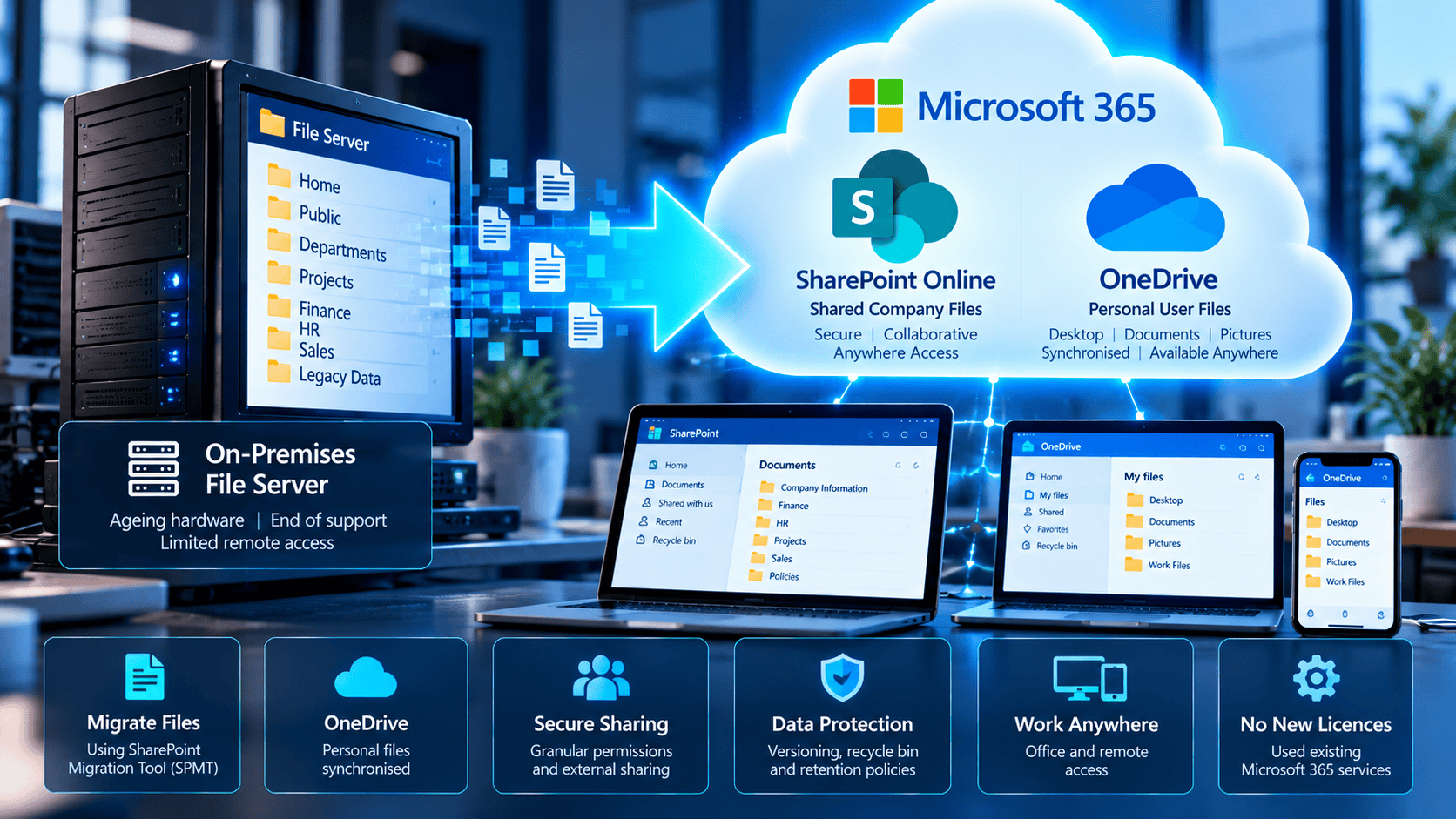
The Challenge: An Ageing On-Premises File Server
The organisation relied on a physical file server providing traditional Home and Public network shares. The server hardware and operating system were approaching the end of their supported life.
The Public share held most of the shared company information, while user data was stored separately. Remote access was increasingly important, exposing the limitations of keeping files on a server in the office.
Ageing Infrastructure
End-of-life hardware, an ageing operating system and years of accumulated data required a replacement strategy.
Use Microsoft 365
The business already had access to SharePoint Online and OneDrive, creating an opportunity to remove its dependency on a dedicated file server.
The key question
Why buy another server if the services already included in Microsoft 365 can meet the business requirement?
File Server to SharePoint Migration Strategy
The approach separated personal user files from shared company information, prepared the new destinations, validated the data and cut over users before decommissioning the original server.
OneDrive
User-specific information, including Desktop, Documents and Pictures, was synchronised with Microsoft 365.
SharePoint Online
Company-wide documents and common folders moved from the Public share into a managed SharePoint document library.
File Server to SharePoint Migration: Eight Controlled Stages
Each stage was completed in sequence so that data integrity and user access could be checked before the next change.
Audit and Clean Up Existing Data
Reviewed the existing file server and involved staff in identifying which files were still actively used, which needed retaining and which were duplicated, superseded or unnecessary.
The data was classified into keep, archive and remove categories so that years of redundant material were not simply copied into the new platform.
Configure OneDrive for Users
Configured OneDrive for individual user data. Important folders such as Desktop, Documents and Pictures were synchronised with Microsoft 365, reducing dependence on local PCs and the old server.
This also simplified future PC replacement: users could reconnect their account and regain access to synchronised folders without manually copying everything between devices.
Prepare SharePoint Online
Created the SharePoint destination for shared company information, prepared the document structure and assigned appropriate staff access.
The former Public share was treated as shared business information rather than placed in an individual user’s OneDrive.
Migrate with the SharePoint Migration Tool
Used Microsoft’s SharePoint Migration Tool (SPMT) to move the required files and folders from the on-premises server to SharePoint Online.
Reviewed the migrated folder structure, checked files and permissions, and confirmed that the destination was ready for staff to use.
Microsoft provides guidance for the SharePoint Migration Tool, which supports migration from on-premises file shares into Microsoft 365.
Synchronise SharePoint Libraries to PCs
Configured the OneDrive sync client so SharePoint documents appeared in Windows File Explorer. Staff could continue navigating familiar folders while the underlying storage had moved into Microsoft 365.
Disable the Legacy File Shares
After validating the migrated data and user access, disabled the old server shares. This was a deliberate cutover step to prevent staff from continuing to save new versions of files in the retired location.
A migration is not complete while users can accidentally keep working in the old system.
Move the Sage Backup to a Synchronised Location
Changed the Sage backup destination to the appropriate user’s Documents folder, which was already synchronised by OneDrive.
This provided an additional cloud-synchronised copy of the Sage backup. Synchronisation was not treated as a replacement for a separately managed backup and recovery strategy.
Decommission the Physical File Server
With user files in OneDrive, company documents in SharePoint, the libraries available in File Explorer, the Sage backup location changed and the old shares disabled, the file server was no longer required.
The physical server could be decommissioned rather than replaced with new hardware.
Benefits of Moving Files to Microsoft 365
Work From Anywhere
Staff were no longer tied to the office file server to reach their Microsoft 365 documents.
Version History and File Recovery
SharePoint and OneDrive offered version history and options to recover accidentally deleted or overwritten documents.
Familiar File Explorer Access
Synchronised SharePoint libraries kept the day-to-day experience familiar for staff.
Easier PC Replacement
OneDrive-synchronised user folders could be reconnected on a replacement computer.
Less Hardware to Maintain
Removing the dedicated file server reduced the infrastructure requiring ongoing maintenance and eventual replacement.
A Cleaner Document Estate
The initial audit avoided migrating unnecessary and duplicated data simply because it existed on the old server.
The Business Outcome: Avoiding a Replacement Server
No replacement file server. No additional Microsoft 365 licences. No additional third-party cloud storage platform.
Because suitable Microsoft 365 licences were already in place, the business could make better use of its existing subscription instead of purchasing a new physical server or introducing separate cloud storage.
No New Server Purchase
Replacement server hardware costs were avoided.
Microsoft 365 Already Licensed
SharePoint Online and OneDrive were available under the organisation’s existing licensing.
Longer-term value
The savings went beyond the initial hardware purchase. Removing the server also reduced the work associated with supporting, maintaining, backing up and eventually replacing dedicated physical infrastructure.
The Result: A File Server That No Longer Needed Replacing
The organisation moved its file storage into Microsoft 365, preserved a familiar experience for users and retired the ageing physical file server.
- Existing file data audited and cleaned up before migration.
- Personal user files moved into OneDrive.
- Shared business documents migrated to SharePoint Online using SPMT.
- SharePoint libraries made available through File Explorer.
- Legacy shares disabled to prevent split versions of company data.
- Sage backup output moved to a OneDrive-synchronised folder.
- Physical file server decommissioned.
- No replacement server or additional Microsoft 365 licences required for this project.
Technologies and Skills
Microsoft 365
SharePoint Online, OneDrive, document libraries, OneDrive folder protection and File Explorer synchronisation.
Infrastructure Modernisation
SharePoint Migration Tool, data auditing, data clean-up, permissions planning, migration validation and server decommissioning.
Still Running an Ageing File Server?
If your business already uses Microsoft 365, a replacement physical server may not be your only option. I can assess your current environment and explore whether SharePoint and OneDrive could provide a simpler, more cost-effective solution. You can also explore other infrastructure and Microsoft 365 case studies.