
HP Computer Failed to boot after Update
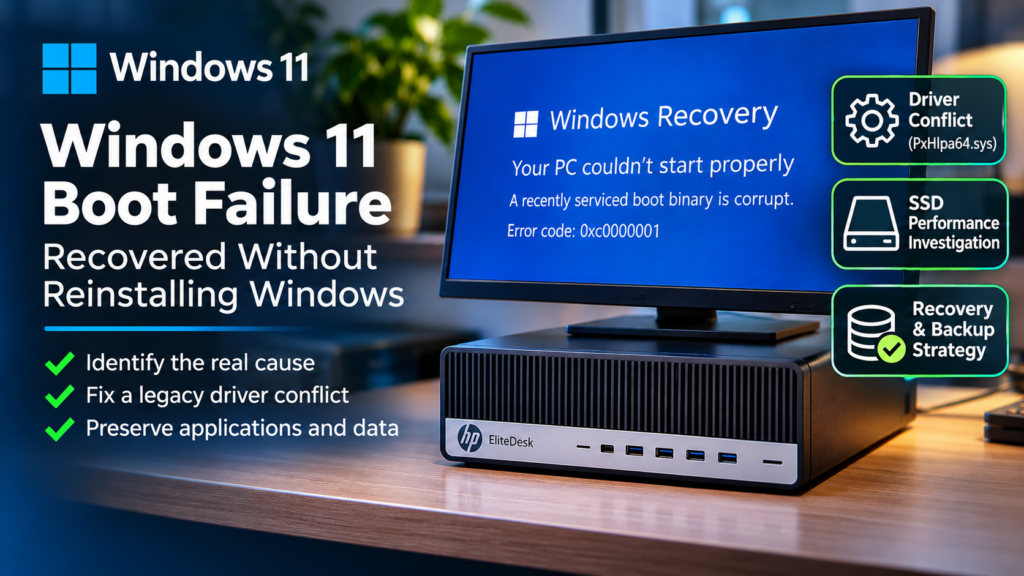
When Windows 11 refuses to boot, reinstalling the operating system is not always the answer. A failed startup can be caused by damaged system files, incompatible drivers, problematic updates, or storage issues. Identifying the underlying cause can mean the difference between recovering a customer’s existing computer and rebuilding everything from scratch.
Recently, I investigated an HP EliteDesk 800 G4 that repeatedly failed to start Windows 11, displaying recovery error 0xc0000001. Windows Startup Repair reported that a recently serviced boot binary was corrupt, but could not identify the offending file.
What followed was a detailed investigation involving Windows recovery tools, offline registry editing, legacy drivers, Safe Mode, and SSD performance testing. The eventual outcome was a successfully recovered Windows installation, with the customer’s applications, settings, and personal files preserved.
The Problem: Windows 11 Stuck in Recovery
The affected computer was an HP EliteDesk 800 G4 Small Form Factor desktop with the following configuration:
| Component | Specification |
|---|---|
| Computer | HP EliteDesk 800 G4 SFF |
| Processor | Intel Core i5-8500 |
| Memory | 16 GB RAM |
| System Drive | SanDisk X400 256 GB SSD |
| Secondary Storage | Seagate 1 TB HDD |
| Operating System | Windows 11 Pro, Build 26300 |
| Storage Controller | Intel SATA RAID / RST |
Normal startup repeatedly failed, presenting a blue Windows Recovery screen with error 0xc0000001. Startup Repair also reported:
A recently serviced boot binary is corrupt.
Unfortunately, the diagnostic report did not identify which binary was responsible. The customer’s existing applications included specialist software that needed to be preserved, making a clean installation an undesirable option.
Step 1: Protect the Original Windows Installation
Before carrying out extensive troubleshooting, I worked from a cloned copy of the Windows installation on a Kingston A400 480 GB SSD.
This was an important precaution. Troubleshooting a damaged operating system can involve changes to drivers, registry settings, boot configuration, and Windows servicing components. Some of these changes can make an already unstable system worse.
Working with a clone provided several advantages:
- Preservation of the Original Drive: The customer’s original SanDisk SSD remained available as a recovery source.
- Controlled Troubleshooting: Driver and configuration changes could be tested without immediately affecting the original installation.
- Application Protection: Existing programs, settings, and user data could be retained.
- Recovery Options: If an attempted repair failed, the original installation remained available for further investigation.
Key lesson: Before attempting invasive Windows repairs, establish a reliable backup or clone. Protecting the customer’s information should always take priority over the speed of the repair.
Step 2: Investigate Windows Recovery and Boot Configuration
The next stage involved investigating the Windows startup environment and determining whether the operating system itself was damaged.
Several diagnostic and recovery techniques were used:
- Windows Startup Repair: Attempted automatic recovery of the startup environment.
- System File Checker (SFC): Checked offline Windows system files for integrity problems.
- Deployment Image Servicing and Management (DISM): Investigated the Windows component store and servicing state.
- Boot Configuration Data (BCD): Examined and rebuilt the Windows boot configuration.
- Windows Update Investigation: Examined servicing packages and recently installed updates.
- System Restore: Attempted to return Windows to an earlier configuration.
- Disk Diagnostics: Checked for filesystem and storage-related problems.
- Event Log Analysis: Reviewed Windows logs and recovery diagnostics for evidence of driver or startup failures.
The offline SFC checks did not identify integrity violations, while DISM did not report component-store corruption. The boot configuration was also inspected, but the computer continued to fail normal startup.
System Restore was unsuccessful, reporting error 0x800701b1 while attempting to restore a Windows system file.
This demonstrated an important principle: a Windows Recovery message describing a corrupt boot binary does not necessarily prove that the underlying cause is Windows file corruption. Drivers, storage faults, and incompatible software can produce similar symptoms.
Step 3: Safe Mode Revealed a Possible Driver Conflict
After repeated unsuccessful recovery attempts, the computer eventually started successfully in Windows Safe Mode.
This was the breakthrough.
Safe Mode starts Windows with a reduced set of drivers and services. If a computer can start in Safe Mode but repeatedly fails during normal startup, driver or software compatibility becomes an important area to investigate.
I examined the installed Windows drivers and their startup configurations. One particular driver stood out:
PxHlpa64.sys
This is a legacy optical-disc-related driver associated with Corel/Roxio software. It was configured as a Boot Start driver, meaning Windows attempted to load it during the early stages of startup.
Interestingly, the computer did not have an optical drive installed.
The driver had a valid digital signature, but a valid signature only establishes that the signed file passes signature verification. It does not guarantee compatibility with every version of Windows.
Step 4: Test the Legacy Driver Without Reinstalling Windows
On the cloned installation, I backed up the relevant registry configuration before temporarily disabling the suspected driver.
The driver’s service configuration was located at:
HKEY_LOCAL_MACHINE\SYSTEM\CurrentControlSet\Services\PxHlpa64
For this Windows driver service, setting the registry Start value to 4 disables the driver.
After making this single change, I attempted a normal Windows startup.
The result: Windows successfully booted into the desktop.
This provided strong evidence that the legacy Corel/Roxio driver was involved in the startup failure.
It did not conclusively establish the original root cause, but it provided a controlled and repeatable recovery direction.
Important: Disabling Windows drivers is not a general-purpose repair technique. Some boot-start drivers are essential for accessing the system disk or operating system. Disabling the wrong driver can prevent Windows from starting. Registry and driver changes should only be made with appropriate backups and a clear rollback procedure.
Step 5: Recover the Original SanDisk SSD
Having demonstrated a successful startup on the cloned installation, I applied the equivalent driver configuration change to the customer’s original SanDisk SSD.
Because the original Windows installation was not running, this required loading its offline SYSTEM registry hive from another computer.
When editing an offline Windows registry, it is important to identify the correct control set rather than assuming that CurrentControlSet is directly available.
Following the change, the original computer initially still encountered a blue screen. However, Safe Mode was accessible, allowing further investigation.
Several applications that were no longer required were removed:
- Google Drive
- SumatraPDF
- Nexus Search
After these changes, the original Windows installation successfully started normally.
Because multiple applications were removed together, it was not possible to determine conclusively which, if any, resolved the remaining startup problem.
More importantly, the customer’s existing Windows environment was preserved, avoiding the need to reinstall specialist applications or rebuild the computer from scratch.
The recovered computer subsequently installed Windows updates and completed further restarts successfully.
Step 6: Investigate Unexpected SSD Performance Problems
During troubleshooting, the Kingston SSD used for the cloned installation was noticeably slow.
Given the computer’s Intel Core i5 processor, 16 GB RAM, and solid-state storage, ordinary Windows operations should have been considerably more responsive.
Windows performance counters showed average disk response times of approximately 350–500 milliseconds per transfer.
These figures were extremely poor for typical SSD workloads and justified further investigation of the storage subsystem.
However, the measurements alone did not establish whether the cause was the SSD, storage controller, driver configuration, or workload.
Step 7: Why the First SSD Benchmark Was Misleading
After recovering the original computer, I connected the Kingston A400 SSD to another Windows PC using a USB-to-SATA adapter.
The initial CrystalDiskMark benchmark showed sequential read and write speeds of approximately 44 MB/s.
At first glance, this appeared to indicate exceptionally poor SSD performance.
However, the results were suspiciously consistent with the practical throughput limit of USB 2.0.
Using USB Device Tree Viewer (USBTreeView), I examined the actual USB connection.
Although the adapter and computer supported USB 3, the connection had negotiated at:
High-Speed USB 2.0 — 480 Mbps
This explained the approximately 44 MB/s benchmark result.
After correcting the connection and testing again, the Kingston achieved substantially higher read speeds.
SSD Benchmark Results: Before and After
The following results demonstrate how significantly the connection type can affect apparent SSD performance:
| Benchmark | Initial Test | Retest |
|---|---|---|
| Sequential Read Q8T1 | 44 MB/s | 458 MB/s |
| Sequential Write Q8T1 | 44 MB/s | 223 MB/s |
| Random 4K Read Q32T1 | 15 MB/s | 173 MB/s |
| Random 4K Read Q1T1 | 13 MB/s | 26 MB/s |
The improved results demonstrated that the first benchmark was limited by the USB connection rather than providing a reliable measurement of the SSD’s maximum performance.
However, several write tests in the second benchmark displayed zero results, meaning further testing would be required before declaring the Kingston completely healthy or faulty.
Key lesson: Before diagnosing a failing SSD, check the entire storage path, including the interface, adapter, cable, controller, and negotiated connection speed.
Step 8: Establish a Reliable Backup and Recovery Strategy
Once the original Windows installation was running normally, the final priority was to establish a reliable recovery strategy.
The following measures were recommended or initiated:
- Enable System Protection: Configure Windows System Restore and create a restore point for the recovered installation.
- Create a Full System Image: Use AOMEI to capture the working Windows installation, including the partitions required for startup.
- Store a Local Recovery Image: Keep a recovery image on the computer’s separate 1 TB hard drive for convenient restoration.
- Maintain an External Backup: Keep an additional copy on separate storage, preferably disconnected when not in use.
- Prepare Bootable Recovery Media: Ensure the system can be restored even if Windows becomes completely unbootable.
- Verify Applications and Files: Confirm that important user applications and personal documents remain accessible.
It is important to understand that System Restore is not a substitute for a full backup. Restore points can help reverse certain system changes, but they do not provide the same protection as a verified disk image and independent file backups.
What Can We Learn From This Windows 11 Recovery?
This investigation highlighted several important principles that apply to both home computers and business IT environments.
- Do Not Automatically Reinstall Windows: Many startup problems can be resolved without sacrificing the existing operating system and applications.
- Legacy Drivers Can Cause Modern Problems: Older drivers may remain installed long after their associated hardware or software is no longer required.
- Safe Mode Is an Important Diagnostic Tool: A successful Safe Mode startup can help narrow an investigation towards driver and service compatibility.
- Protect the Original Installation: Working from a clone reduces the risk of losing valuable applications, configurations, and user data.
- Interpret Diagnostic Messages Carefully: A recovery error may describe a symptom without identifying the underlying cause.
- Understand Benchmark Limitations: Poor SSD benchmark results can be caused by interface or connection restrictions rather than the SSD itself.
- Verify Recovery Before Declaring Success: A computer should survive further restarts, updates, and normal application use before being considered stable.
Repairing Windows vs. Reinstalling Windows
There are situations where a clean Windows installation is appropriate. However, it should be a considered decision rather than the automatic response to every startup failure.
| Approach | Advantages | Limitations |
|---|---|---|
| Targeted Windows Recovery | Can preserve applications, settings, and files; addresses identifiable faults; reduces rebuilding effort. | Requires detailed diagnosis; can be time-consuming; success depends on the underlying fault. |
| Clean Windows Installation | Provides a fresh operating system; removes accumulated software configuration issues. | Requires application reinstallation, configuration, data restoration, and potentially specialist software licences. |
The Final Outcome: Windows Recovered Without Reinstallation
The original HP EliteDesk 800 G4 was successfully recovered, retaining the customer’s existing Windows environment, applications, settings, and personal files.
The computer subsequently installed Windows updates and restarted successfully, providing stronger evidence of stability than a single successful boot.
The investigation strongly implicated a legacy Corel/Roxio optical-disc driver in the original startup failure, while additional software changes were required before the original installation started normally.
Separately, the Kingston SSD investigation demonstrated how USB connection speeds can dramatically affect benchmark results and why poor performance must be investigated rather than immediately attributed to defective hardware.
The most important outcome was not simply getting Windows to boot again. It was recovering the customer’s existing computer while preserving the applications and information they relied upon.
Need Help With Windows Recovery or IT Problems?
At Paul Clarke IT Consultancy, I provide practical IT support, troubleshooting, Windows recovery, and infrastructure services for businesses in Crewe, Nantwich, Sandbach, and the surrounding areas.
My approach focuses on identifying the underlying cause of a problem, protecting existing information, and delivering a reliable solution rather than automatically recommending replacement equipment or a complete rebuild.
Whether your computer is failing to start, experiencing unexplained performance problems, or suffering from driver and update issues, I can help investigate the problem and recommend an appropriate recovery plan.
Contact Paul Clarke IT Consultancy to discuss your IT support requirements.
Technical Disclaimer: This guide documents a real troubleshooting case. Registry modifications, driver changes, offline Windows servicing, and storage diagnostics can introduce additional risks if performed incorrectly. Always maintain appropriate backups and recovery options before attempting advanced repairs.